
AI coding assistant
MonaBase is AI-native across five workflows: stored-program and trigger coding, trace-based debugging, SQL creation, SQL tuning and test-data generation. Each assistant starts in the relevant screen with its own context. Choose an OpenAI-compatible provider and model; review what is sent and what is proposed.
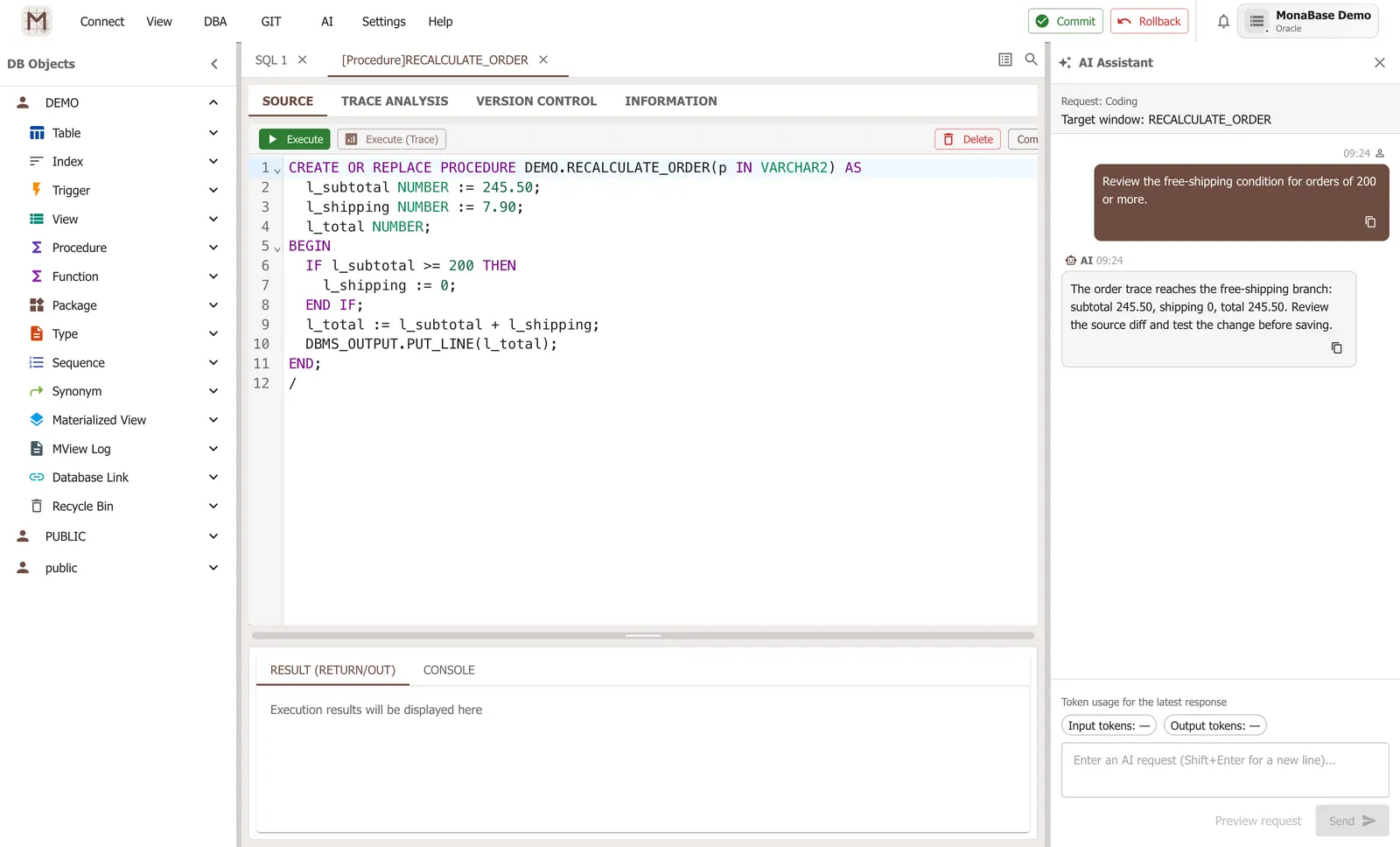
Stored-program & trigger coding
Section titled “Stored-program & trigger coding”Create or revise procedures, functions, views and triggers using selected definitions as context; Oracle also supports package bodies. Review the source diff before adopting a proposal.
Trace-based debugging
Section titled “Trace-based debugging”Send recorded execution order, source lines and variable values to AI. Ask it to reconstruct a pseudo step-through, explain a branch or find where a value first diverged from expectations.
SQL creation
Section titled “SQL creation”Describe the query you need from the SQL window or query builder. Add the relevant tables and views, then inspect the proposed SQL before running it.
SQL tuning
Section titled “SQL tuning”Bring SQL, execution-plan information and related definitions into a tuning request. Review suggested changes and compare actual plans and results before adopting them.
Test-data creation
Section titled “Test-data creation”Describe the sample data you need for the selected table. Use AI assistance alongside generation rules and a preview; insertion remains a separate action under your control.
Your context in. A proposal out.
Section titled “Your context in. A proposal out.”The AI provider does not receive a database connection or a tool for executing SQL. MonaBase sends the context you approve; applying source, executing SQL and inserting data remain application actions you review and initiate. Selected source and trace values are still sent to your provider.
Choose your AI provider.
Section titled “Choose your AI provider.”Configure a model and an OpenAI-compatible Chat Completions endpoint, including compatible hosted services or local providers. You are not tied to one AI vendor; available features and context limits depend on the chosen service and model.
How to use this screen
Section titled “How to use this screen”- Configure a compatible Chat Completions endpoint, model and API key in AI settings. Hosted and local providers are supported when they expose the required OpenAI-compatible API; adjust response and timeout limits for your service.
- Start the assistant from the code, trace, SQL, tuning or data-generation screen. Select the required context, state your question, and preview the outgoing request. The provider does not connect directly to your database.
- Review answers, evidence and proposed changes. Apply source edits, execute SQL or insert data only after checking them; compare actual results with the proposal. An adopted summary can be edited for a Git commit.
Give the AI requirements and evidence
Section titled “Give the AI requirements and evidence”Describe what should happen and what you observed. These details help the model separate evidence from hypotheses; they do not guarantee a correct answer. Review the outgoing preview, then review and test the proposal yourself. The AI has no direct database access.
| Control / setting | How to use it | Effect of the change |
|---|---|---|
| Expected behavior and verification (optional) | Expand this section in the AI sidebar and enter an input example, expected result, actual result, constraints, and pasted compile/test results as needed. | For example, state the expected shipping fee at the threshold and the observed value. Keep public signatures and transaction behavior in the constraints. These fields are transient request context and clear when the target context changes. |
| Related object candidates | Where object selection is available, review candidates based on catalog dependencies and foreign keys, and explicitly add only the objects needed. | Added definitions help explain referenced tables and routines. Candidates are bounded and do not discover every dynamic SQL or external dependency. Candidate display alone does not select definitions for sending. |
| Database environment | Check the environment in the sidebar and outgoing preview. Refresh it when needed; if the main connection is busy or retrieval fails, the unavailable state is shown. | Available context includes DB version, current schema, time zone, and session settings such as Oracle NLS or PostgreSQL search_path/DateStyle, plus the app read-only setting. Environment values come from the main session; definitions and metadata use background connections whose settings may differ. Gathering this context does not commit or roll back pending work. |
| Trace evidence | Ask about the failing input and expected result using a recorded trace. See the trace guide for recording and analysis. | New trace records include the executed source snapshot and its hash when available. The prompt asks for step, line, and variable evidence. Missing or approximate line mappings are identified as unverified; a mapping is not proof that every displayed source line executed. |
| SQL tuning evidence and bind values | Review the SQL, plan, statistics, and available matching execution observations. Bind values are excluded by default: explicitly enable sharing for the current plan only when appropriate. See the SQL guide. | Estimated plans and actual observations are distinguished, along with plan-generation time and SQL execution time. Available statistics dates help assess freshness. A new plan resets bind-value sharing consent. SQL is not rerun merely to supply AI context. |
| Create repair request | After checking a proposal yourself, paste the compile/test output into the verification field and choose Create repair request. Review the draft instruction and outgoing preview before sending. | Creates a draft request for a minimal repair that preserves your constraints. The button does not send a request, execute SQL, or compile code. Remove confidential values from pasted logs before sending. |
AI menu and usage history
Section titled “AI menu and usage history”Open settings and the usage history from the AI menu. Token counts are not the provider’s actual billing charges.
| Control / setting | How to use it | Effect of the change |
|---|---|---|
| AI menu | Open AI in the top menu | Choose AI settings or usage history. |
| AI settings | Open the AI settings dialog | Configure enablement, endpoint, credentials, and model. |
| Usage history | Open AI usage history | Review recorded request time, type, model and input/output tokens. |
| Month navigation | Select a month or move to previous/next/current month | Changes the listed records and token totals. |
| Retry | Use after a usage-history loading error | Requests the history again. |
AI connection settings
Section titled “AI connection settings”Configure an OpenAI-compatible API. Check the chosen provider’s protocol, pricing and data-handling terms.
| Control / setting | How to use it | Effect of the change |
|---|---|---|
| Enable AI support | Toggle on/off and save | Disabling prevents AI requests. |
| API endpoint URL | Set the provider endpoint | Changes where subsequent requests are sent; an invalid URL prevents connections. |
| Provider selection | Choose an entry from the provider list | Fills the endpoint URL; credentials and model compatibility still need checking. |
| API key | Enter credentials if required | Used for authentication; some local endpoints permit an empty key. |
| Model name | Enter the model identifier | Changes the model requested by later calls. |
| Save | Save the entered configuration | Applies settings after successful persistence; check inputs if saving fails. |
| Retry loading settings | Retry after a loading failure | Attempts to reload stored settings. |
AI chat and request review
Section titled “AI chat and request review”Open AI chat from the relevant workflow. Wait until required target objects have loaded before submitting.
| Control / setting | How to use it | Effect of the change |
|---|---|---|
| Request text | Enter an instruction | Sets the prompt to be submitted. |
| Target objects | Choose required tables, views, or other objects | Selected definitions may become part of the request context. |
| Preview request | Open the preview before sending | Inspect the pending request and context; opening the preview does not send it. |
| Send | Submit the reviewed request | Sends data to the configured external provider, potentially incurring charges and data disclosure. |
| Cancel | Cancel an in-progress request | Attempts to stop processing; cannot retract already transmitted data. |
| Send shortcut | Change the send-key preference in app settings | Changes between Enter and Ctrl/Cmd+Enter submission. |
| Copy message | Use the copy button beside a message | Copies the visible request or answer to the clipboard. |
| Reset conversation | Confirm the conversation reset | Clears the scoped conversation; preserve anything needed beforehand. |
Reviewing and applying generated results
Section titled “Reviewing and applying generated results”Review AI-generated source or SQL before applying it to the editor. Applying it does not itself compile or execute it in the database.
| Control / setting | How to use it | Effect of the change |
|---|---|---|
| Compare changes | Review before/after source or settings | Inspect differences before accepting a proposal. |
| Change summary | Enter or review the adoption summary | Associates a summary with the accepted change; some dialogs require nonempty text. |
| Apply changes | Accept the reviewed proposal | Updates the editor; rejects stale proposals if the source changed in the meantime. |
| Discard | Reject the proposal | Preserves the existing editor content. |
| Execute or compile | Use the normal SQL execution or compile action afterward | Database effects are a separate action; verify SQL and privileges first. |
Five AI workflows
Section titled “Five AI workflows”Each workflow has a different request context and result destination. Validate generated output before use.
| Control / setting | How to use it | Effect of the change |
|---|---|---|
| Stored program / trigger coding | Submit source context and desired changes | Suggested source and settings can be reviewed and applied to the editor. |
| Trace debugging | Ask about a recorded trace | AI interprets recorded steps; it does not autonomously step through a live DB session. |
| SQL generation | Provide required tables/views and desired query | Review and apply generated SQL to the editor; it is not executed automatically. |
| SQL tuning | Supply SQL and available plan/context | Treat recommendations as proposals; benchmark against the real database. |
| Data generation | Specify target table and generation rules | Review the proposed data/settings before any execution action. |
Data sharing, history and limits
Section titled “Data sharing, history and limits”Only selected context is sent to AI. Review confidential SQL and connection-related context before submission.
| Control / setting | How to use it | Effect of the change |
|---|---|---|
| Outgoing context | Inspect the request preview | Shows source, definitions and prompt being sent. |
| Conversation history | Reuse history scoped to the target and connection | Allows previous exchanges to be consulted while separating connection scopes. |
| Response size/time limits | Adjust limits in application settings | Oversized or slow responses may be stopped. |
| Provider charges and retention | Read the chosen API provider’s terms | Charges and retention/training rules depend on the provider. |
| Token history | Review usage by month | Shows token counts, not final billed amounts. |