
ER diagrams
Custom ER diagrams are first-class Git-managed design artifacts, not just exported images. Save table/view layouts and diagram relationships, record revisions as the design evolves, and retain earlier versions beside your stored source. Diagram edits remain separate from applying database constraints.
AI assistance is available for this feature. See the AI assistant guide for details.
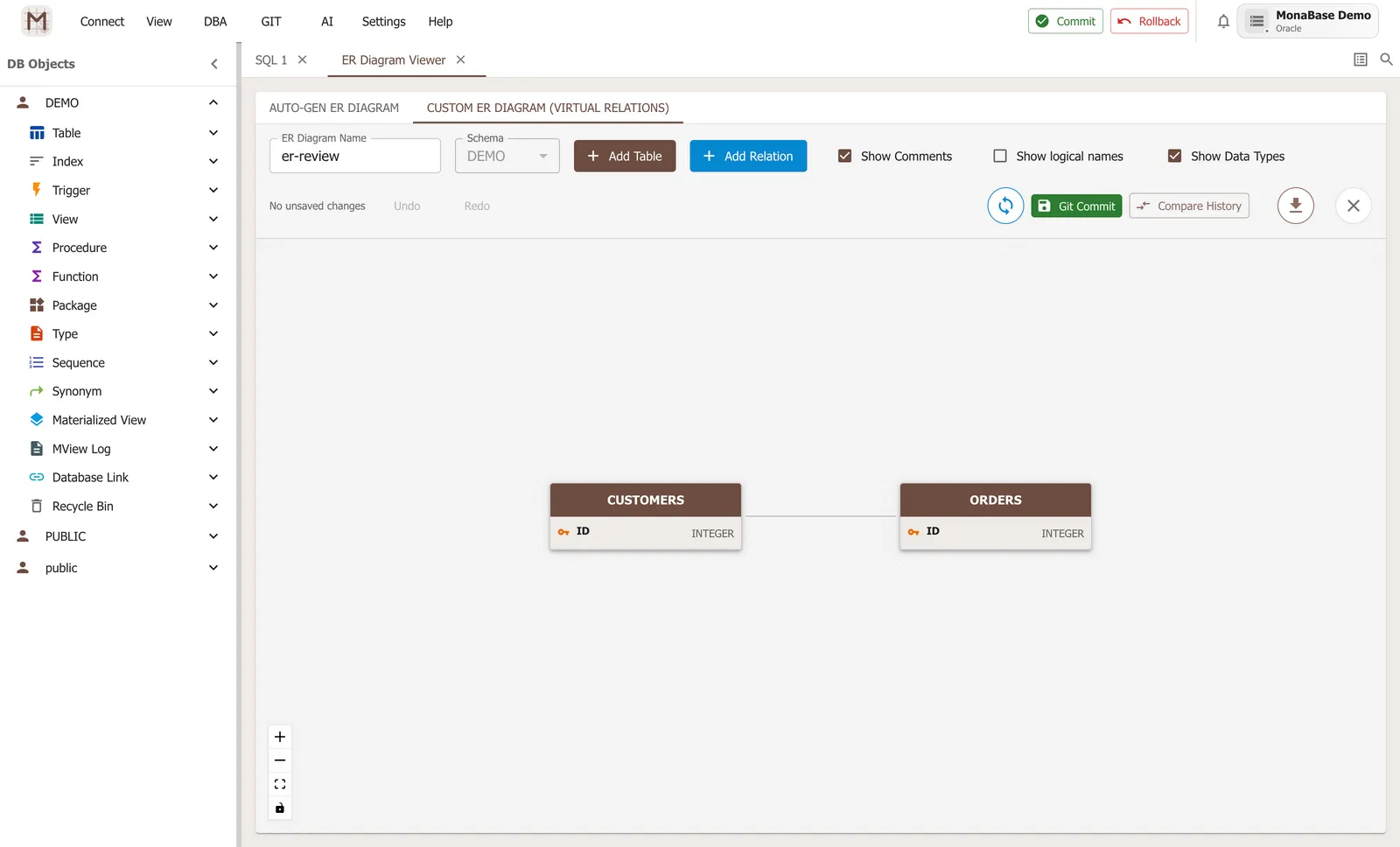
Your database design deserves a history, too.
Section titled “Your database design deserves a history, too.”Keep custom ER diagrams in Git, not just a folder of final images. Record snapshots as tables and relationships evolve, retain earlier designs, and keep diagram history in the same development workflow as your stored source.
How to use this screen
Section titled “How to use this screen”- Open an ER diagram or create a custom one. Use Add table to search tables and views in pages of 100.
- Arrange objects, inspect keys and columns, and add supported diagram relationships. Check schema names when objects share a name.
- Save the diagram and record a reviewed revision in Git when needed. Reopen it to continue from the saved layout.
Auto-generated diagram tab
Section titled “Auto-generated diagram tab”Builds a diagram from existing foreign-key metadata. Display options affect the diagram, not the database.
| Action / setting | How to use | Effect |
|---|---|---|
| Schema | Select a schema for the diagram | Loads table candidates and relationship metadata for the selected schema. |
| Table (All) | Select a table or All | Targets a selected table or the complete schema when drawing. |
| Draw ER diagram | Click Draw with the current selection | Retrieves metadata and redraws the diagram without modifying database definitions. |
| Show comments | Toggle the checkbox | Shows or hides comments for tables and columns. |
| Show logical names | Toggle when comments are enabled | Toggles use of available comments as the primary displayed names. |
| Show data types | Toggle the checkbox | Shows or hides column data types in the diagram. |
| Export PNG | Click the image-export icon | Exports the currently displayed diagram to a PNG image. |
Custom ER diagram: create and edit
Section titled “Custom ER diagram: create and edit”Edits locally saved diagrams with layout and virtual relationships. The schema controls the diagram scope.
| Action / setting | How to use | Effect |
|---|---|---|
| Create new ER diagram | Choose Create new ER diagram | Starts a new editable custom diagram. |
| Open / delete saved diagram | Select an entry or its delete icon | Opens the saved diagram or requests deletion of that saved diagram. |
| Diagram name | Enter a name | Identifies the saved custom diagram. |
| Schema | Choose the target schema | Changes the scope of tables and views available for addition. |
| Add tables/views | Search and choose objects in the add dialog | Adds nodes to the diagram; it does not create database objects. |
| Comments / logical names / types | Toggle the display options | Changes how names, comments, and types appear in the diagram. |
| Move nodes | Drag objects on the canvas | Updates node positions; changes remain unsaved until saved. |
| Undo / Redo | Use the Undo or Redo button | Reverses or reapplies custom-diagram edits. |
Custom ER diagram: virtual relations
Section titled “Custom ER diagram: virtual relations”Relationship lines are diagram metadata, not actual database foreign-key constraints.
| Action / setting | How to use | Effect |
|---|---|---|
| Add relation | Choose Add relation | Opens the dialog for parent/child objects and cardinality. |
| Parent / child object | Choose endpoints | Changes the endpoints of the diagram relation. |
| Cardinality | Select 1, 0..1, 1..N, 0..N, or MANY | Changes symbols at relationship endpoints; no database constraint is applied. |
| Save relation | Click Save in the dialog | Applies virtual-relation edits to the diagram. |
| Edit / remove relation | Use the relationship context menu | Edits or removes the selected virtual relation from the diagram. |
Custom ER diagram: save, sync, and history
Section titled “Custom ER diagram: save, sync, and history”Saving and Git actions affect diagram files and history, not database foreign keys or object definitions.
| Action / setting | How to use | Effect |
|---|---|---|
| Save / Git Commit | Choose the action according to Git availability | Saves a local diagram or proceeds to a Git commit when a local repository is available. |
| Commit message | Enter text in the Git dialog | Adds an optional description to identify the saved revision. |
| Sync with database | Review proposed changes and apply | Reviews database-object changes before applying them to the diagram. |
| Compare history | Open comparison and select a revision | Shows earlier and current diagrams side by side with change indicators. |
| Restore selected version | Choose Restore in comparison mode | Restores a prior diagram revision, not database definitions. |
| Export PNG / close | Choose export or close | Exports the diagram image or closes the custom editor. |