Workspace & sidebar
OraclePostgreSQLMySQL
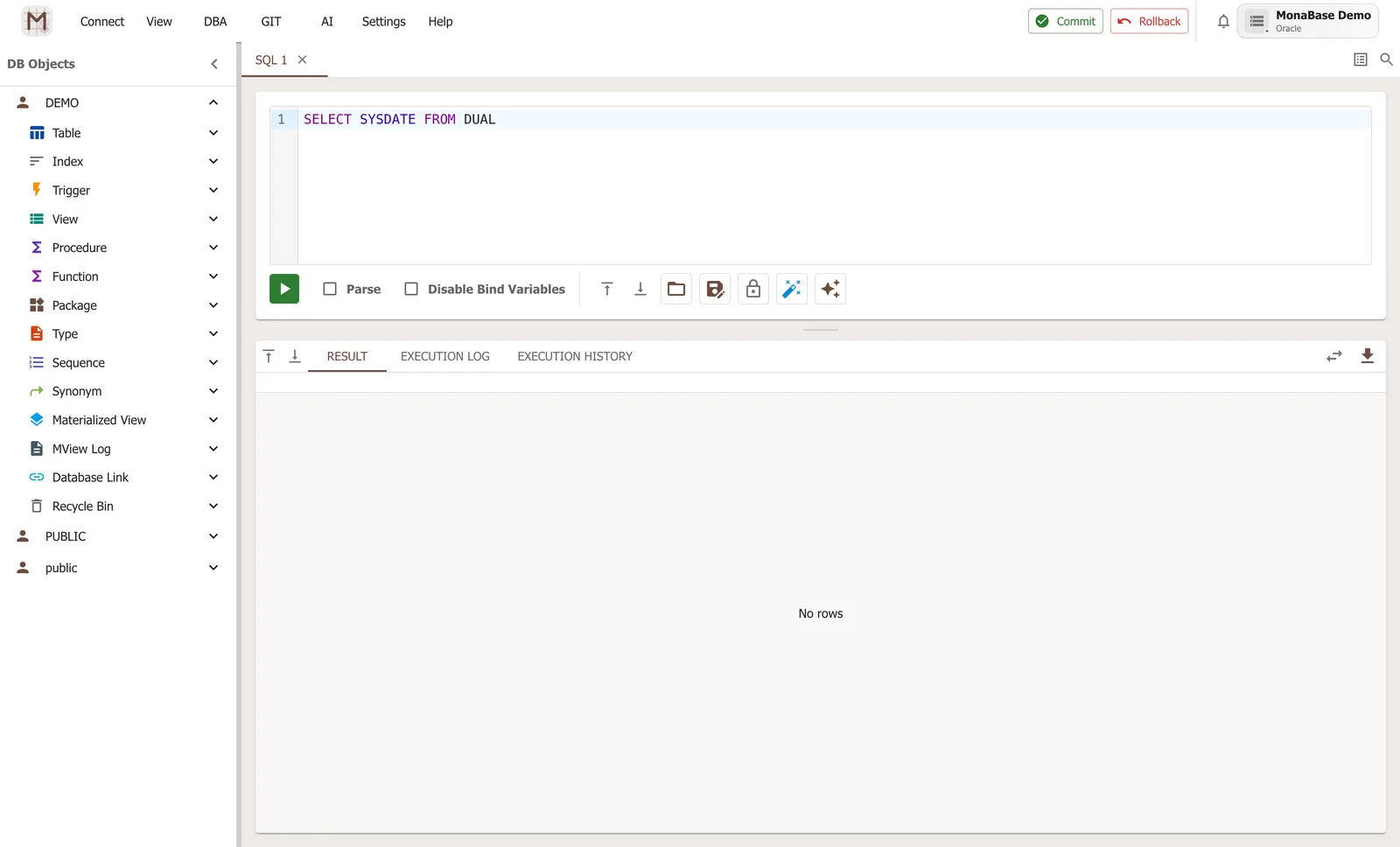
The sidebar groups objects by schema and category. The main area keeps object editors and tools in tabs. Connection identity stays visible so you can confirm the target before running SQL or changing definitions.
How to use this screen
Section titled “How to use this screen”- Select a schema, expand a category and search for an object. Load additional entries when the category has more results.
- Open an object to inspect its data, definition or information. Use the context menu to see the operations available for that object.
- Use open-tab search to locate a tab; choose it with the arrow keys and Enter. Recheck the connection color and schema before a change.
Left sidebar: schemas and objects
Section titled “Left sidebar: schemas and objects”Browse schema/category trees and open database objects in workspace tabs.
| Action / setting | How to use | Effect of changing or executing |
|---|---|---|
| Toggle sidebar | Show or hide the left sidebar. | Changes the working area width without modifying the DB. |
| Resize sidebar | Drag the divider between the sidebar and workspace. | Changes only the panel layout. |
| Expand or collapse schema | Expand a schema to browse its categories. | Changes navigation visibility only. |
| Object category | Open categories such as tables, views and procedures. | Shows matching objects; supported categories vary by database. |
| Select/open object | Select an object and open it from the tree. | Shows its object tab; opening it does not modify DB data. |
| Object context menu | Right-click an object and select an available command. | Available actions differ; check the target before executing any mutation. |
| Load more / refresh | Use load-more or refresh actions where available. | Reloads list data; a failed retrieval does not mean an object was removed. |
Workspace tabs: switching and arrangement
Section titled “Workspace tabs: switching and arrangement”Work with multiple SQL, object and administration tabs.
| Action / setting | How to use | Effect of changing or executing |
|---|---|---|
| Select tab | Click a tab header. | Switches the active view without changing the database. |
| Tab tooltip | Hover over a tab title. | Displays object type and qualified identity when available. |
| Reorder tabs | Drag a tab header to another position. | Only changes tab order, not SQL or DB definitions. |
| Scroll tabs | Use tab scrolling when headers overflow. | Makes off-screen tabs accessible. |
| Close button | Click the close icon on a tab. | Closes that tab; unsaved changes can trigger confirmation. |
| Delete key | Focus a tab header and press Delete. | Requests closing the focused tab; verify unsaved work. |
| Tab context menu | Right-click a tab header. | Opens commands to close all, other, or right-side tabs. |
| Close all tabs | Choose Close all tabs from the tab menu. | Closes all tabs after any unsaved-changes confirmation. |
| Close others / tabs to right | Choose the matching context-menu command. | Closes the chosen set of tabs; prompts if they contain unsaved changes. |
Find open tabs
Section titled “Find open tabs”Search the already-open tabs by name or description.
| Action / setting | How to use | Effect of changing or executing |
|---|---|---|
| Find tabs button | Click the tab-search icon beside the tab bar. | Opens the dialog listing currently open tabs. |
| Ctrl/⌘+Shift+O | Use the keyboard shortcut to open tab search. | Lets you navigate open tabs without a mouse. |
| Search text | Enter a tab title or object name. | Filters candidate tabs without modifying them. |
| Arrow keys / Home / End | Navigate candidate rows in the search dialog. | Moves the highlighted candidate. |
| Enter / select result | Confirm a result or click it. | Closes the dialog and activates that tab. |
| No match / close dialog | See the no-results message or dismiss the dialog. | Does not change existing tabs or the DB. |
Command search: opening tools
Section titled “Command search: opening tools”Use the command palette to open supported tools and settings.
| Action / setting | How to use | Effect of changing or executing |
|---|---|---|
| Find commands button | Click the command-search icon. | Opens the list of available commands. |
| Ctrl/⌘+Shift+P | Open command search from the keyboard. | Shows command actions without navigating menus. |
| SQL window / Query Builder | Choose the relevant command. | Opens a tool tab; does not execute SQL by itself. |
| ER diagram / generator / pivot | Choose the relevant tool command. | Opens the selected tool; any DB effects depend on later actions. |
| Sessions / locks / administration | Choose a corresponding management command. | Opens the administration tab; viewing alone does not run mutations. |
| Git / AI / app settings | Choose a settings command. | Opens its dialog; resulting effects depend on subsequent save or execution. |
| Disconnected / busy state | Connection-dependent commands are disabled when disconnected; search is blocked while busy. | Unavailable actions cannot be launched. |
Settings: tab limit and safety
Section titled “Settings: tab limit and safety”Set a tab limit and watch for unsaved changes and active database context.
| Action / setting | How to use | Effect of changing or executing |
|---|---|---|
| Maximum visible tabs | Set a value from 1 to 99 in Settings and save it. | Changes the opening limit; attempting to exceed it shows a notice. |
| Tab limit reached | Read the maximum-tabs notification. | New tabs are not added until capacity is available. |
| Unsaved changes prompt | Review the confirmation when closing a dirty tab. | Continuing can discard unsaved editor changes. |
| Connection and schema | Check the target connection and schema before executing SQL. | Reduces the risk of modifying an unintended database object. |
| UI actions vs database changes | Tab navigation, searching, reordering and resizing only affect the UI. | DB data/definitions change only through explicit execution in a tool tab. |