
Git source history
Version control is for database design as well as code. MonaBase records stored source and custom ER diagrams in Git: review source changes and revisions, keep earlier diagram designs, and prepare recovery SQL in the same workspace.
AI assistance is available for this feature. See the AI assistant guide for details.
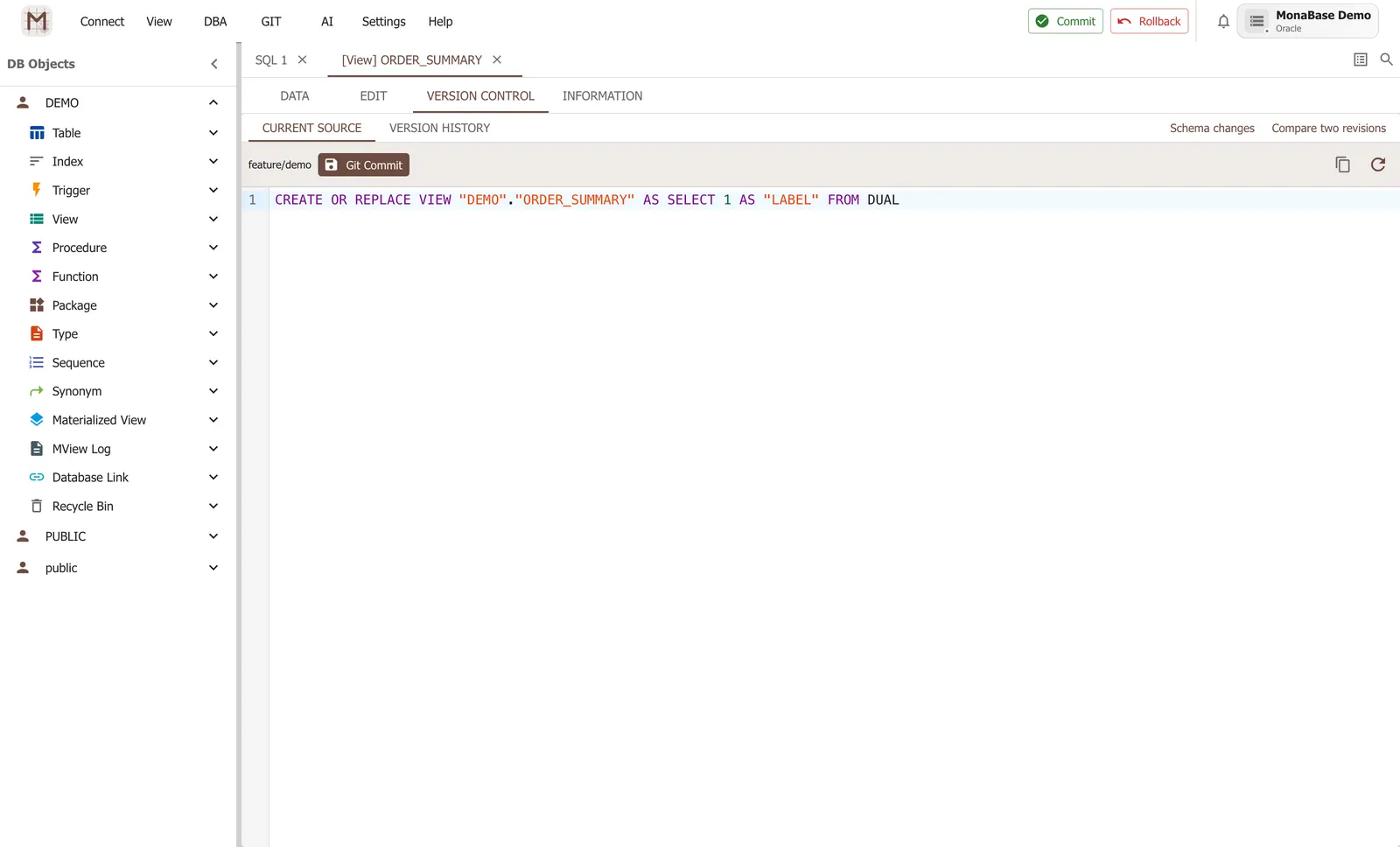
How to use this screen
Section titled “How to use this screen”- Choose a Git working folder and open an object Git tab. Review the source difference before entering a commit message.
- Use Schema changes to compare database definitions, recorded Git source and local files. Select related changes and review them before recording a batch.
- Compare two revisions or open recovery SQL from history. For a remote repository, review Pull conflicts per file and complete or abort the merge explicitly.
Git environment settings
Section titled “Git environment settings”Initialize and connect the local database-source repository. This is separate from the MonaBase application source repository.
| Control / setting | How to use | What changes |
|---|---|---|
| Open Git settings | Use the Git menu to open the environment settings dialog. | Shows local repository status and remote setup; opening does not change Git. |
| Initialize repository (git init) | Run only when the configured working folder is not yet a Git repository. | Creates local Git metadata in the working folder; no database schema is modified. |
| Remote repository URL | Enter the destination Git URL for this workspace. | Changes the pending remote setting; editing the field does not upload anything. |
| Branch name (read-only) | Review the current branch detected from the repository. | This field does not rename or switch branches. |
| Save and perform initial push | Save the remote configuration and attempt the initial push. | Contacts the Git remote; if its history requires a Pull, resolve that separately rather than assuming it was overwritten. |
Current source tab
Section titled “Current source tab”Displays database source and actions for recording it in Git.
| Control / setting | How to use | What changes |
|---|---|---|
| Current source display | Read the displayed database definition in the read-only editor. | Does not edit the database or the local Git file. |
| Git Commit | Open the commit dialog for the displayed database object. | Requires an initialized repository; opening the dialog does not commit. |
| Commit message | Enter an optional history description in the dialog. | Sets the message for the planned Git commit; the database source remains unchanged. |
| Use saved AI change summary | For FUNCTION, PROCEDURE, TRIGGER, PACKAGE, or PACKAGE BODY, use the saved summary of the most recent adopted AI change from the AI conversation history. | Fills the Git commit message field with the existing summary without sending a new AI request. Review the message before committing; if no adopted summary is available, the existing message is left unchanged. |
| Record | Confirm the Git commit dialog. | Records the database-source snapshot in the configured Git workspace; does not run SQL against the DB. |
| Copy / Refresh source | Copy displayed SQL, or refresh the current definition from the database. | Copy affects the clipboard; refresh updates the comparison source, not the DB definition. |
Version history tab
Section titled “Version history tab”Review revisions and open recovery SQL without automatically executing it.
| Control / setting | How to use | What changes |
|---|---|---|
| Select history entry | Click a revision in the version list. | Changes the past-source selection and displayed diff; no Git commit is made. |
| Side-by-side / inline diff | Switch the comparison layout using the diff controls. | Changes only the way additions and deletions are displayed. |
| Search left/right | Use each pane’s search button or Ctrl/Cmd+F on the focused pane. | Highlights matching text; Enter moves to the next hit, without changing the source. |
| Refresh history and source | Refresh the displayed database source and revision list. | Updates the display to newly fetched data; database objects are not modified. |
| Open recovery SQL | Select a past revision, then open its recovery statement. | Opens SQL for review; execution or compilation is a separate explicit operation. |
Schema changes dialog
Section titled “Schema changes dialog”Review current database definitions alongside recorded and local sources, then commit selected differences.
| Control / setting | How to use | What changes |
|---|---|---|
| Object type / Refresh | Choose all or one supported object category, then run Refresh. | Scans the selected schema category and rebuilds the review list; this does not commit. |
| Changed only | Toggle the changed-only checkbox. | Filters the displayed rows; it does not discard or overwrite source files. |
| Review checkbox | Select individual objects whose database source differs from recorded Git source. | Controls which reviewed objects will be included in the commit. |
| Compare with | Switch comparison between recorded Git source and local working file. | Changes the left-hand baseline; the right side remains current database source. |
| Commit message / Commit selected | Enter a message and commit selected changed objects. | Rechecks that DB source has not changed since the scan, then commits; does not update the DB. |
| Cancel scan | Cancel while the schema review is scanning. | Stops using the in-progress scan result; no partial commit occurs. |
Compare two revisions
Section titled “Compare two revisions”Compare any two available recorded revisions for the selected object.
| Control / setting | How to use | What changes |
|---|---|---|
| From / To revision | Choose each revision from the history dropdowns. | Loads the two source snapshots and updates the diff; does not restore either revision. |
| Swap revisions | Swap left and right revision selections. | Reverses the comparison direction and added/deleted highlights. |
| Diff layout | Select side-by-side or inline view. | Only changes the visual layout, not repository content. |
| History pages | Move between pages when additional revisions exist. | Loads another page of history for selection. |
Pull and conflict resolution
Section titled “Pull and conflict resolution”Remote synchronization is distinct from database compilation and local commits.
| Control / setting | How to use | What changes |
|---|---|---|
| Pull | Use the Git menu to confirm pulling from the configured remote. | Fetches/merges remote changes into the workspace; affected object tabs should be reopened to reflect changes. |
| Resolve conflicts | Open the conflict dialog if Pull reports merge conflicts. | Review conflicted files individually before completing the merge. |
| Abort merge | Confirm abort when a merge is in progress and should not continue. | Aborts the in-progress Git merge; it does not roll back database SQL changes. |
| Git access and credentials | Use the Git remote and local credential configuration supported by the environment. | Authentication/network errors prevent synchronization; never paste tokens into public reports. |