
Get started
MonaBase is a desktop database IDE for Oracle Database, PostgreSQL and MySQL. It connects to a database you provide; it does not include a database server. Git integration and an optional AI assistant extend the same workspace.
Download the latest release — Windows x64 installer / portable EXE, or macOS Apple Silicon DMG. See all releases for earlier versions.
On Windows, you can also install from Microsoft Store. Unlike a directly downloaded EXE, the Store edition is not subject to SmartScreen download warnings.
See Database support for the server versions used in verification.
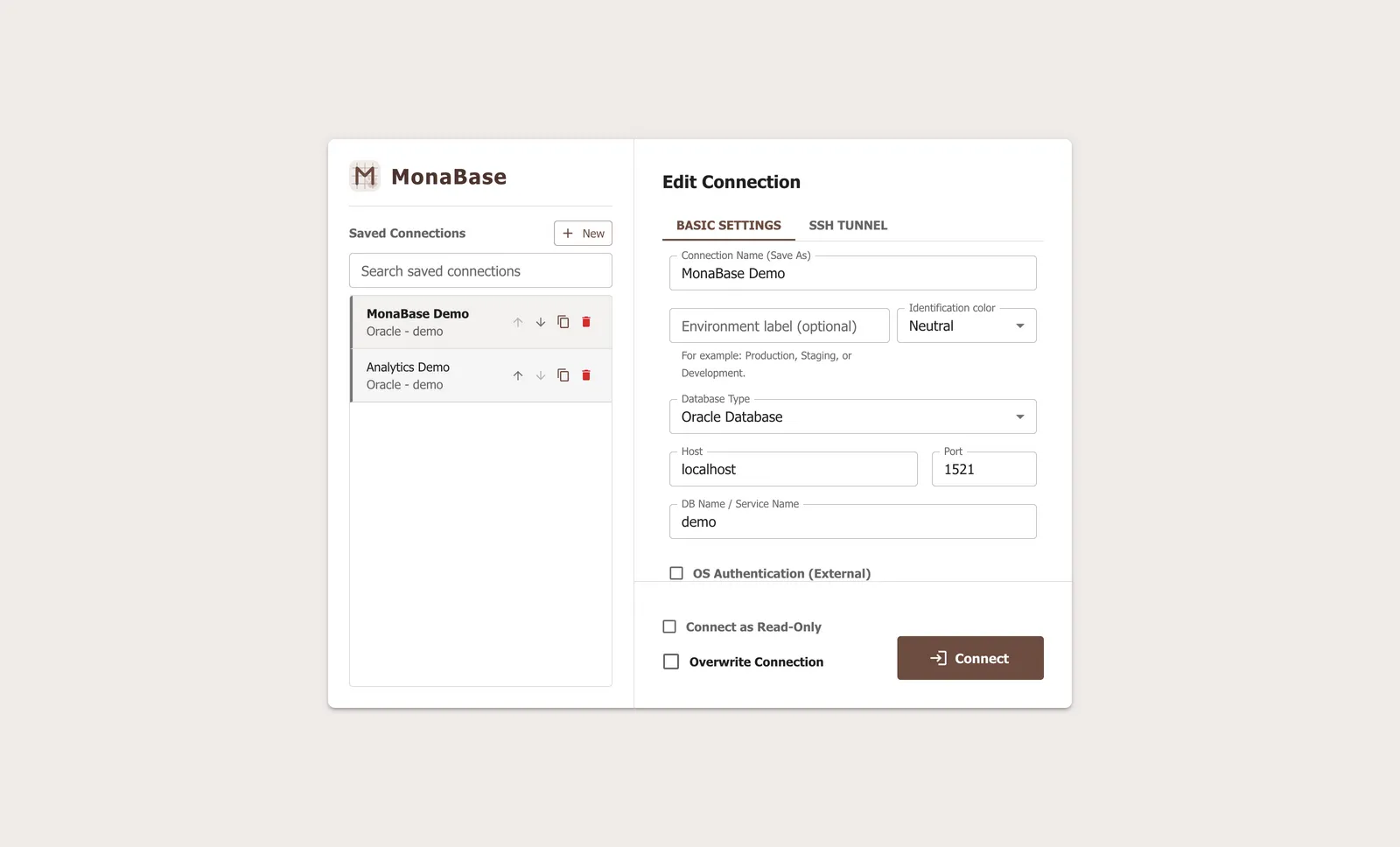
How to use this screen
Section titled “How to use this screen”- On Windows, install from Microsoft Store, or download the latest release: choose the Windows x64 installer or portable EXE, or the macOS Apple Silicon (arm64) DMG. Intel Macs and Linux packages are not supported.
- After installing the Store edition, launch it from the Start menu. On Windows, use the installer or launch the portable EXE. On macOS 13+ with Apple Silicon, open the DMG, drag MonaBase to Applications, eject the DMG, and open MonaBase from Applications. On first launch, macOS may request Keychain access to protect saved credentials.
- Prepare a database account, connect from the login screen, then open a table or SQL window from the workspace. Configure Git and AI only when you need them.
Install and first launch
Section titled “Install and first launch”Prepare MonaBase on Windows x64 or macOS 13+ with Apple Silicon, and reach the first connection screen.
| Control / setting | How to use | Effect of changing or running |
|---|---|---|
| Select a release | Open the latest release and choose the Windows x64 installer or portable EXE, or macOS arm64 DMG. See all releases for earlier versions. The Windows edition is also available from Microsoft Store. | Installation steps depend on the package. If no release exists, there is no published distribution to download. |
| Windows Microsoft Store edition | Open Microsoft Store, select Get or Install, and follow the installation prompts. | The Store edition is signed by Microsoft and is not subject to SmartScreen download warnings. It is the recommended way to install on Windows. A database server is not included. |
| Windows installer | Run the Windows x64 installer and follow its prompts. | Installs MonaBase on the PC. It does not install a database server. |
| Windows portable EXE | Launch the Windows x64 portable executable. | Runs without a conventional installer. Observe any OS restrictions or security notices. |
| macOS Apple Silicon DMG | On macOS 13 or later with an Apple Silicon chip, open the arm64 DMG, drag MonaBase to Applications, eject the DMG, then open MonaBase from Applications. | The app and DMG use Developer ID signing and Apple notarization with stapled tickets. A normal first-open confirmation may appear. Do not disable Gatekeeper. Intel Macs are not supported. On first launch, macOS may ask to allow MonaBase to access the Keychain to encrypt or read saved database and SSH passwords and AI API keys. For the official app, allow access to use saved credentials. |
| Other operating systems | Prebuilt downloads support Windows x64 and macOS Apple Silicon (arm64). | Intel Mac and Linux packages are not provided. Linux continues to host common tests and real-database integration tests. |
| Verify the release source | Review release notes and GitHub Artifact Attestations. | Helps verify provenance but is not equivalent to operating-system code signing or a complete security guarantee. |
| Why SmartScreen may appear | MonaBase is developed independently, and Windows builds distributed directly through GitHub currently do not carry a trusted code-signing certificate. Windows Defender SmartScreen may show “Windows protected your PC” or “Unknown publisher.” | A SmartScreen reputation warning does not necessarily indicate malware, but it does not establish that a file is safe. New unsigned downloads often lack sufficient reputation. Microsoft explains that Store-distributed apps are not subject to SmartScreen download warnings. |
| Verify the download before proceeding | Check that the file came from the official MonaBase GitHub Releases page and compare the release, filename, and published details. Check Artifact Attestations when available. | Do not run a file whose provenance you cannot verify. You do not need to turn off Windows security protections system-wide to proceed. |
| Select More info | If SmartScreen appears for a verified Windows installer or portable EXE, select “More info” and review the displayed app name and publisher. | A “Run anyway” option may appear. For an unsigned build, the publisher can show as “Unknown publisher.” |
| Proceed only after verification | If you have verified the official download and accept the risks, select “Run anyway” to continue. Otherwise select “Don’t run.” | Continues to the installer or portable app. This choice should be made only for a file you trust. |
| Organization restrictions and the Store edition | If organization policies prevent the app from running, contact your administrator. The Windows edition can also be installed from Microsoft Store. | Do not disable SmartScreen across your device. The Store edition avoids SmartScreen download warnings, but organization installation policies still apply. |
Connection screen: saved profiles
Section titled “Connection screen: saved profiles”Manage saved profiles in the connection screen during first launch or reconnection.
| Control / setting | How to use | Effect of changing or running |
|---|---|---|
| New connection | Choose New Connection to open a fresh profile. | Starts an unsaved profile. No connection to the database is made yet. |
| Select saved connection | Select a profile in the list. | Loads its values into the form; selection alone does not connect. |
| Search profiles | Search by name, environment label, database, or username. | Filters visible profiles only; does not change saved settings or the database. |
| Duplicate | Click the duplicate control for a profile. | Creates an unsaved copy without changing the original. |
| Move up/down | Clear the search and use the up/down buttons. | Changes the saved order of connection profiles, not database data. |
| Delete | Click Delete on the profile and confirm. | Removes its saved profile, not the database or its accounts. |
Basic settings tab: first connection
Section titled “Basic settings tab: first connection”Select Oracle, PostgreSQL or MySQL and enter the target server and authentication details.
| Control / setting | How to use | Effect of changing or running |
|---|---|---|
| Database type | Select Oracle, PostgreSQL or MySQL. | Changes the driver, relevant fields, and default port. |
| Profile name and environment label | Enter an identifiable profile name and environment label. | Changes labels in the app, not the actual database name or server configuration. |
| Host and port | Enter the database server hostname and listening port. | Changes the target endpoint for the next connection; invalid values prevent a connection. |
| Database or service name | Specify a PostgreSQL/MySQL database or an Oracle service identifier. | Changes the database target; does not create or modify the database. |
| Username and password | Provide database account credentials. | Attempts a login under that account; does not change its password. |
| Oracle OS authentication / SYSDBA | Enable Oracle-specific authentication options only when needed. | Changes login method or administrative privilege; availability depends on the server and account. |
| PostgreSQL / MySQL TLS | Configure the TLS mode and CA certificate if required. | Changes encryption and server verification rules; a mismatch can cause connection failure. |
| Read-only mode | Toggle the read-only option. | Limits write operations in MonaBase; does not modify server-side account grants. |
SSH tunnel tab: optional configuration
Section titled “SSH tunnel tab: optional configuration”Use an SSH jump host when the database cannot be reached directly.
| Control / setting | How to use | Effect of changing or running |
|---|---|---|
| Use SSH tunnel | Enable or disable SSH tunneling. | When enabled, tries to connect through an SSH host. Leave disabled when unnecessary. |
| SSH host and port | Enter the jump host and SSH port. | Changes the SSH endpoint, which is distinct from the database endpoint. |
| SSH username | Enter the SSH login user. | Authenticates to the jump host; database credentials are configured separately. |
| Password or private key | Choose SSH authentication and provide a password or private key. | Changes SSH authentication; invalid key permissions or passphrase can prevent connection. |
| Choose private key file | Select an SSH private key from the file picker. | Changes which local key file is referenced; does not modify the file. |
Connect, save, and start working
Section titled “Connect, save, and start working”Connect, load schemas, and open your first work tab.
| Control / setting | How to use | Effect of changing or running |
|---|---|---|
| Save connection settings | Review the save option before connecting. | If enabled, the app attempts to save the profile. It may warn if credentials cannot be persisted. |
| Connect | Click Connect. | Attempts the DB connection and loads schemas on success; check the error if connection fails. |
| Browse schema and objects | Expand a schema in the sidebar and select tables or other objects. | Lets you inspect database definitions and data; browsing itself makes no DB changes. |
| SQL window | Open an SQL window in the workspace. | Provides an editor. The DB is affected only when SQL is actually executed. |
| Git and AI setup | Open Git or AI settings when needed. | Neither is required for the first DB connection; no Git commit or AI request is performed by default. |