
Procedures & functions
Stored-program windows combine source, input/output panels, trace replay, Git history and information. Existing programs expose Source, Version control and Information; Trace analysis appears when a recording exists. The tables below explain the controls for standalone procedures/functions and distinguish real DB operations from source history and recorded replay.
AI assistance is available for this feature. See the AI assistant guide for details.
After independently verifying an execution, save its arguments and expectations in stored-program regression tests to check later source changes.
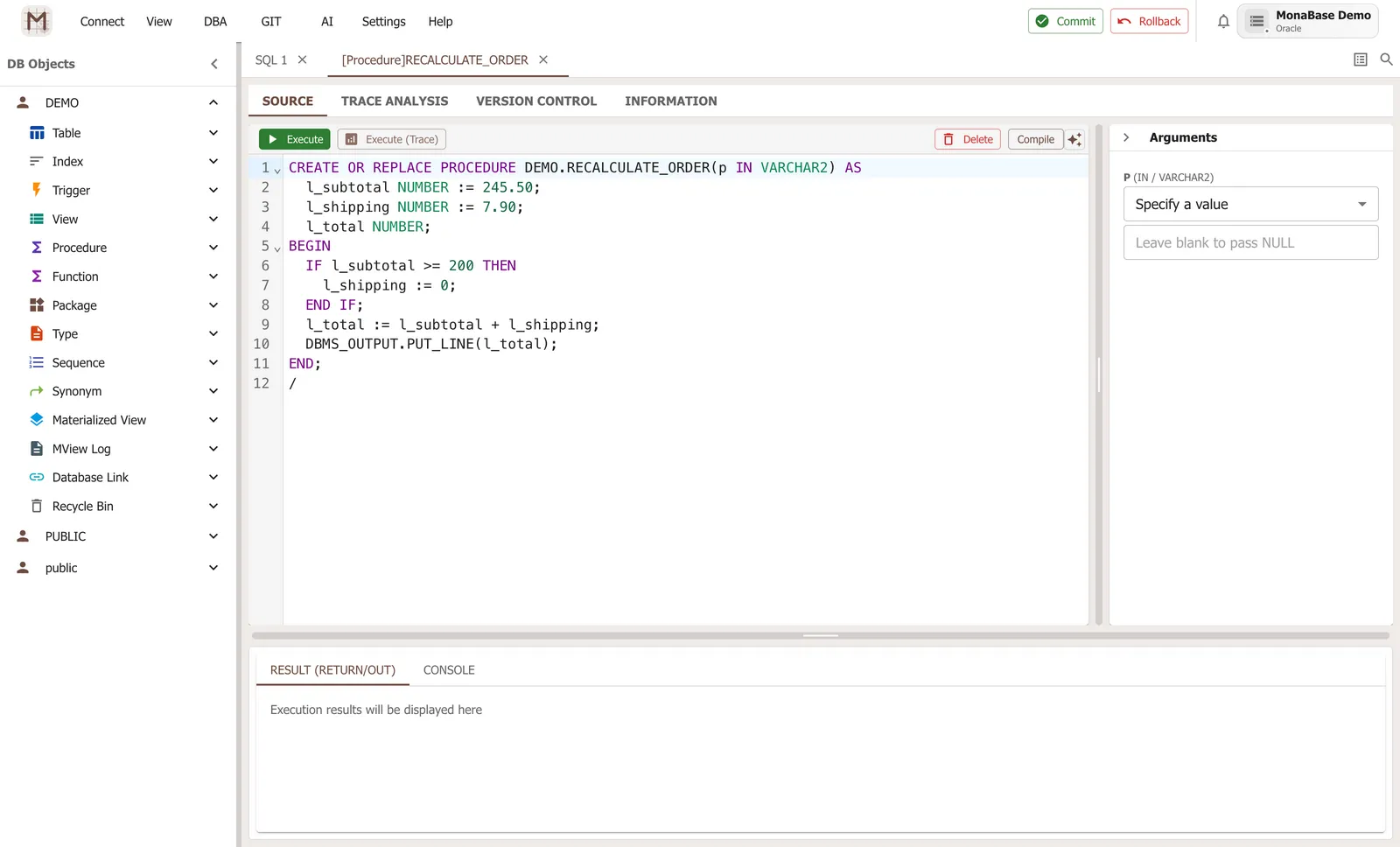
Source tab — edit, compile and execute
Section titled “Source tab — edit, compile and execute”This guide covers standalone procedures/functions. Existing programs have Source, Version control and Information tabs; Trace analysis appears when a recording is available. New programs initially show Source without the existing-program execution panels.
| Button / setting | How to use it | What changes |
|---|---|---|
| Source editor / completion | Edit the full program definition. Use line numbers and completion for database objects, functions and detected local symbols. | Changes the editing draft only. An asterisk on Source marks a difference from the loaded/compiled source, not an automatic DB update. |
| New program / definition identity | For a new program, fill in the definition in the selected schema. For an existing one, retain its schema, name and routine kind. | Compilation checks the target and statement boundary. On PostgreSQL, existing argument-type identity is also checked to avoid updating a different overload. |
| Compile | Review the definition and click Compile. Read editor markers and the lower console if compilation fails. | Creates/replaces the actual DB program. A successful compile refreshes arguments/metadata and clears the current trace replay; Git recording is attempted separately. |
| Execute | Enter the right-panel inputs and click Execute for a loaded, valid program. | Runs the installed DB routine, not an uncompiled editing draft. Writes and other side effects can occur; inspect RETURN/OUT and console results afterward. |
| Execute trace | Set representative inputs and use Execute trace when you need an execution recording. | Runs the supported instrumented program and records its path/values. It is an actual execution, distinct from moving through an already recorded trace. |
| Ask AI to code | Configure AI support, open the AI button and describe the intended change with the necessary reference objects. | Opens the coding conversation with the current program context. Review any generated/applied source in the editor, then compile deliberately; the AI does not directly connect to the DB. |
| Load failure / Retry | Use Retry after source, argument or status retrieval fails. | Reloads the target metadata before existing-program operations. An invalid or unready program cannot be executed normally; an existing edited draft is preserved during a refresh. |
| Delete | For an existing program, use Delete and review the confirmation and exact target. | Drops the DB routine and attempts to remove its trace/Git object. PostgreSQL uses the selected argument-type signature, not just the displayed name. |
| Working panels / busy state | Open/close the right input panel, drag the vertical/horizontal boundaries and wait for active compile/execute/AI preparation to finish. | Changes viewing space without modifying the program. Conflicting source/execution controls are disabled while busy to avoid overlapping operations. |
Source tab — arguments and lower result panels
Section titled “Source tab — arguments and lower result panels”The right panel lists IN and IN/OUT inputs with their types. RETURN and pure OUT values are output, not required input fields. Input mode and value are separate settings.
| Button / setting | How to use it | What changes |
|---|---|---|
| Specify a value | Enter a value for each input parameter that should receive an explicit value. | Passes that argument in the execution request. Check names, types and IN/OUT direction rather than assuming every routine has the same inputs. |
| Blank input / NULL | Leave an input empty only when SQL NULL is intended. | Missing/empty input becomes NULL. Whitespace is an explicit value; typing the text null is not the same as leaving the input empty. |
| Use default | For a parameter declared with a default, choose the default mode instead of entering a value. | Disables the value field and omits the argument so the DB applies its default. An empty value field in value mode sends NULL instead of requesting the default. |
| Numeric input | Enter a finite numeric value appropriate for the declared parameter type. | Rejects malformed numeric input before execution. Large integers and precise decimals are passed as validated values; do not enter SQL expressions in a value field. |
| Date/time input / calendar | Use the displayed input-format example or calendar for DATE/TIMESTAMP parameters. | Builds a typed datetime argument instead of ordinary text. Choose NULL/default deliberately when a date should be omitted. |
| Result (RETURN / OUT) | Open the lower result tab after execution. | Shows the returned function value and output parameters when present. No RETURN/OUT does not prove that the program made no data changes. |
| Console / clear log | Read DB output/notices and execution/compile errors in the lower console; use its trash icon to clear displayed logs. | Clears display messages only. It does not undo a DB execution, compiled definition or recorded trace. |
Trace analysis tab — replay and investigate
Section titled “Trace analysis tab — replay and investigate”This tab appears when trace data is available. It replays recorded execution rather than pausing a live database session. For acquisition, limits and detailed debugging steps, see the Trace analysis guide.
| Button / setting | How to use it | What changes |
|---|---|---|
| Recording / analysis timestamp | Acquire a trace from Source or open a program with compatible stored trace data; check the analysis timestamp. | Identifies the run being inspected. Current input fields and current source are not proof that a saved recording was produced with those same values/version. |
| Play / Resume | Use Play to start a recording or Resume after a replay pause. | Moves through recorded steps and breakpoints. It does not execute the routine again; source freshness is checked before starting replay. |
| Step into / Stop | Use Step into to move by recorded steps and Stop to end replay. | Changes the replay position only. Stop does not roll back the DB run that originally created the recording. |
| Breakpoints / conditions | Toggle a breakpoint in the source margin; right-click it to set hit count or variable-name/comparison/value conditions. | Controls where replay pauses when recorded events match. Conditions affect playback, not the stored program’s SQL or transaction. |
| Variables | Use the right Variables tab and expand the available groups while stepping. | Displays values captured in the trace. A missing variable is not proof of NULL, and a recorded snapshot is not a live DB watch. |
| Recorded arguments / conditions | Use the trace-side Arguments tab and the Conditions tab when offered. | Shows recorded inputs and available execution-condition information, separately from the editable inputs for the next DB run. |
| Search the trace source | Use source search and move through matches to locate a statement in a long program. | Navigates displayed source text; a text match does not mean that line executed in this recording. |
| Ask AI to analyze the trace | With AI configured, use the trace AI button, review the prepared context and describe the observed issue. Large traces can request confirmation. | Prepares saved trace data and current source for AI reasoning. The AI analyzes recorded evidence rather than directly stepping a DB session or automatically changing the routine. |
Version control tab — record and compare source
Section titled “Version control tab — record and compare source”Use the shared Git view after configuring the local repository. Compilation/DB execution, source-history recording and pushing to a remote are distinct operations.
| Button / setting | How to use it | What changes |
|---|---|---|
| Current source / copy | Read or copy the source held in the editor; check the Source asterisk. | May include edits not yet compiled in the DB. Copying/recording source does not apply those edits to the routine. |
| Fetch latest source | Use the source refresh icon to reload definition, arguments and status. | Refreshes metadata while preserving an existing edited draft. Review which text is being recorded if the draft differs from the fetched DB source. |
| Record / commit message | Record the reviewed source with an optional message; configured AI can help summarize changes. | Creates a local Git commit. Automatic recording attempted after compilation can fail independently of DB success, so verify the history when it matters. |
| History / compare revisions / schema changes | Select history for current-source differences, choose two revisions to compare, or inspect schema-wide source changes. | Shows code changes without executing them. PostgreSQL history retains overload identity even when the workspace tab displays only the name. |
| Open recovery SQL | Select the intended revision and open its recovery SQL. | Opens SQL for review and deliberate execution; it is not an automatic routine restore or a rollback of data written by prior executions. |
| Push / refresh Git state | Review repository/remote settings before Push and refresh history when needed. | Publishes source commits to the configured remote or refreshes Git state. It does not deploy a stored program to another DB. |
Information tab — identity, arguments and dependencies
Section titled “Information tab — identity, arguments and dependencies”Inspect metadata before running a routine, especially PostgreSQL overloads whose tab names omit argument types. This tab reports catalog data; it is not a place to change security or parameter declarations.
| Button / setting | How to use it | What changes |
|---|---|---|
| Refresh / Retry | Use the outlined refresh button or Retry after an information read fails. | Reloads routine information and dependencies without executing the program. A failure is reported rather than interpreted as no dependencies. |
| Exact identity / status | Read schema/name and PostgreSQL signature/OID-based identity; inspect the status. | Helps distinguish overloads. Oracle validity is catalog status; PostgreSQL VALID indicates an identified existing routine, not a guarantee of successful execution for every input. |
| Language / security | Read PL/SQL or the PostgreSQL language and the displayed AUTHID/security mode. | Describes the stored definition’s execution context; viewing it does not grant privileges or switch invoker/definer mode. |
| Return type / argument table | Read return type plus parameter name/type, IN/OUT and default information. | Explains the contract to use in the input panel. If only default availability is shown, do not invent an exact default expression. |
| References / dependents | Read the schema/name/type lists in each direction. | Shows visible catalog dependencies. Use them to review affected objects before changing or deleting the program. |
| Dependency scope | Treat the lists as direct catalog-visible links, not a complete analysis of source or every caller. | Dynamic SQL and application calls can be absent. PostgreSQL also depends on which links pg_depend records; an empty list is not proof of an unused routine. |
From execution to trace replay
Section titled “From execution to trace replay”Use representative inputs in a dedicated test environment, compile the intended version, then acquire a trace. Check the recording time and arguments before replaying; use breakpoints/variables to connect an observed result to the recorded path. Acquisition runs code and can have side effects, while replay only investigates that recording. After changing source, acquire a new trace rather than treating the old recording as evidence of the new program. See the Trace analysis guide for full steps and supported-program limits.
Use AI for coding and evidence-based debugging
Section titled “Use AI for coding and evidence-based debugging”The Source AI button prepares coding work; the Trace AI button prepares an execution-record investigation. State the expected behavior and provide only the necessary references. For debugging, ask the AI to cite recorded steps/values and distinguish observations from guesses. Check generated code before compiling it and verify changes with a new run. AI uses the selected provider and receives the prepared context; it is not given a direct database connection or permission to execute arbitrary DB actions.
Compilation, execution and Git are different changes
Section titled “Compilation, execution and Git are different changes”Compilation updates the DB program definition; normal execution can change business data; Git stores source history; trace replay changes only the analysis position. Review the connected environment, routine behavior and current transaction before running. Oracle DDL can implicitly commit pending work, and routines themselves can perform transaction control or nontransactional side effects. Neither clearing the console nor selecting an older Git revision automatically undoes those effects.
How to use this screen
Section titled “How to use this screen”- Open the routine and confirm its source, exact identity and parameter declarations in Information. Compile the intended draft before treating normal execution as a test of your edits.
- Choose explicit values, NULL through blank input, or declared defaults; execute in an appropriate environment and inspect RETURN/OUT and console output. Acquire a trace when recorded debugging is needed.
- Review trace evidence or AI suggestions, verify any new source before compiling, and check local Git history separately from DB success. Use fresh recordings after changes.
Database-specific behavior
Section titled “Database-specific behavior”Oracle
Section titled “Oracle”PL/SQL compilation diagnostics and dependencies are shown for the selected object. Use the Packages guide for packaged routines.
PostgreSQL
Section titled “PostgreSQL”PostgreSQL overloads are identified by argument types even though workspace tab titles omit the arguments for readability.
MySQL has separate Procedure and Function categories with Source, Version control, Information and Trace analysis. IN/OUT/INOUT are supported for procedures; functions accept IN values and return one scalar. Local and parameter completion is available. Empty argument inputs mean SQL NULL.