
Views
The view window has four tabs: Data, Edit, Version control and Information. Data reads the view results; Edit saves the database definition; Version control manages source history; Information shows catalog status, columns and direct dependencies. The tables below distinguish these operations and their effects.
AI assistance is available for this feature. See the AI assistant guide for details.
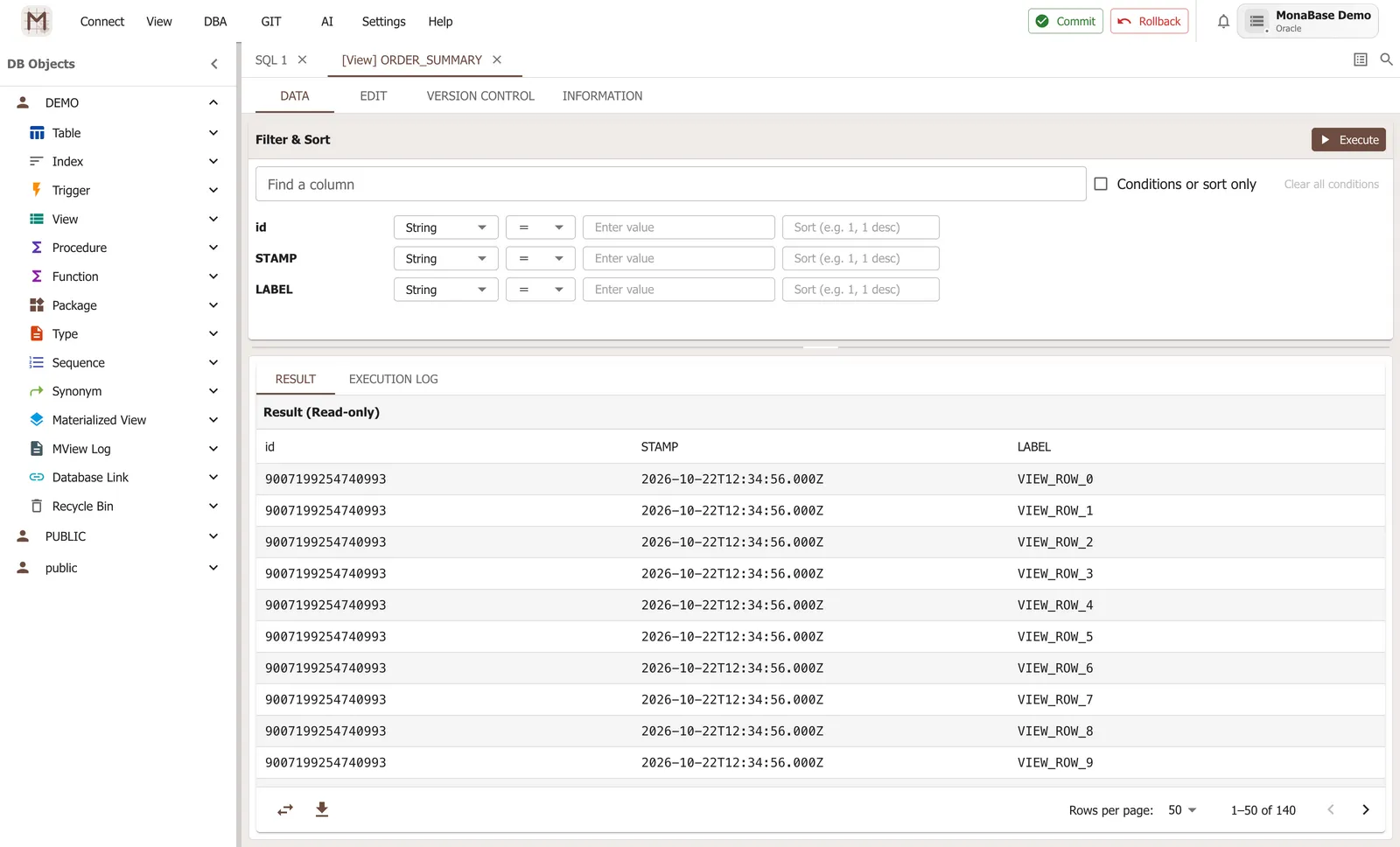
Data tab — filters, sorting and paging
Section titled “Data tab — filters, sorting and paging”The Data tab reads the view results. It has no record insert/update/delete or import controls, even if the database supports updates through that view. Definition editing is a separate operation on the Edit tab.
| Button / setting | How to use it | What changes |
|---|---|---|
| Execute | Set conditions and click Execute. Opening the Data tab also performs an initial search after column information is available. | Runs a matching-row count and fetches the first result page. It queries the view, not each underlying table separately. |
| Find a column / active conditions only | Enter part of a column name or enable the active-only checkbox. | Filters the condition editor only. Conditions in hidden columns remain; a status message reports hidden active columns. |
| Value type | Choose String, Number or Date; PostgreSQL also provides Time only. Read the date/time field example before entering a value. | Changes how the search value is validated and converted. Excluded column types are unavailable for filtering or sorting; the view column type itself is unchanged. |
| Operator and value | Choose equality, inequality, less-than-or-equal, greater-than-or-equal or LIKE. Leave a value empty to omit that column filter. | Different column filters use AND. LIKE means literal substring matching; % and _ in the input are treated as characters rather than user wildcards. |
| Sort priority and direction | Enter 1, 2, 1 DESC or ASC/DESC in the sort fields. | Smaller priority numbers sort first. ASC is ascending and DESC descending. Without a distinguishing sort, equal-valued rows can appear in a different order across pages or queries. |
| Click a result column header | Click a condition-enabled column header in normal view. | Immediately searches page one, toggles ascending/descending for that column and clears other sort fields. This action is disabled in transposed view. |
| Clear all conditions | Clear the entered conditions, then click Execute to confirm the new result. | Resets condition/sort inputs. Clearing alone does not replace displayed rows. |
| Page / rows per page | Choose 50, 100 or 500 rows and move with the controls below the grid. | Fetches the requested page with the current input conditions. Changing page size returns to page one. It does not load the whole view into the grid. |
| Changing conditions before paging or export | After editing or clearing a condition, click Execute before moving pages or exporting. | Unlike the table window, view paging and normal export use current inputs. An old result can stay on screen until the next query, so execute first to align it with the intended filters. |
Data tab — result tools and export
Section titled “Data tab — result tools and export”The result grid is read-only. These tools change presentation or export data; they do not modify records in the underlying tables.
| Button / setting | How to use it | What changes |
|---|---|---|
| Transpose / reset view | Use the swap-axes icon below the result grid; click again to return. | Shows the currently loaded page with fields as rows. Normal paging is hidden during transposed display; it does not fetch all view rows. |
| Export format / destination | Open the download icon and choose Clipboard, CSV or Excel; choose a destination path for a file. | Creates tab-separated clipboard text or a file. Normal export fetches all rows matching current filters, not only the visible page; transposed export uses the loaded transformed result. |
| Header / CSV encoding / spreadsheet safety | Choose whether to include headers, select UTF-8 or Shift-JIS for CSV, and toggle protection for formula-like text. | Controls output text and spreadsheet interpretation. Protection may add a leading apostrophe; review the raw-value trade-off before disabling it. |
| Export progress / Stop | Read fetch/prepare/save status and use Stop while export data is being fetched. | Stops further export fetching without altering database data. Normal export issues additional queries, so large or expensive views may take time. |
| Execution log / condition divider | Read SQL, result messages and errors in Execution log; use its trash icon to clear logs, or drag the divider to resize the condition area. | Changes the visible log or screen layout. A read/count failure is an error, not proof of zero rows; clearing the log does not resolve the failure. |
Edit tab — save the view definition
Section titled “Edit tab — save the view definition”This editor changes the database VIEW definition, not a SQL file. Only one CREATE [OR REPLACE] VIEW statement explicitly naming the opened schema and view is accepted.
| Button / setting | How to use it | What changes |
|---|---|---|
| Source editor / completion | Edit the loaded definition, keeping its schema-qualified view name. Use line numbers and schema/object completion to navigate. | Changes a local editing draft only; the DB is unchanged until Save/Compile is executed. The SQL dialect and completion match Oracle or PostgreSQL. |
| Asterisk on Edit | Check whether the Edit tab has an asterisk before leaving or recording source. | Indicates a difference between the editing text and the last saved/loaded source; it is not a Git push status or an automatic file save. |
| Compile (Save) / Save (Compile) | Use Compile (Save) on Oracle or Save (Compile) on PostgreSQL after reviewing the definition. | Executes the VIEW definition on the main DB connection. Successful DDL invalidates cached data/metadata and updates the sidebar; it is not merely a syntax preview. |
| Target / statement validation | Keep exactly one VIEW declaration with the opened schema and name. Use the SQL window for other SQL or migrations. | Rejects a different target, unqualified view name, multiple statements or another object type before sending the definition for execution. |
| Load failure / Retry | Use Retry in the source error message and wait for a successful load. | Save is disabled until a valid source load succeeds. A refresh preserves an existing edited draft rather than silently replacing it with fetched text. |
| Compiler diagnostics | Read the console and editor error markers after a failure. Oracle also checks VIEW errors after DDL; PostgreSQL can report a statement position. | Helps locate invalid definitions without treating a failed compile as a clean save. On Oracle, a FORCE definition can leave an invalid object in the DB; inspect Information as well. |
| DB save and Git recording | After a successful compile, read any Git failure message separately. | The app attempts to record the updated source in Git. A Git failure does not undo the successful DB change; fix Git and record again instead of assuming DB save failed. |
| Delete view | Click Delete, review the confirmation and required privileges, then proceed deliberately. | Issues DROP VIEW, not DELETE against its base-table rows. Dependencies may prevent deletion; the action also attempts Git source removal and closes the tab on completion. |
| Console / resize / close / clear | The console opens when messages arrive. Drag its boundary, close it with × or clear its messages with the trash icon. | Changes the log presentation only. Hiding or clearing messages does not undo a view definition or repair an error. |
Version control tab — source history and comparison
Section titled “Version control tab — source history and comparison”Set up the local Git repository from the app menu before using recording/history operations. The version-control view receives the editor text, so a draft is not necessarily the definition currently installed in the DB.
| Button / setting | How to use it | What changes |
|---|---|---|
| Current source / Copy | Read or copy the source currently held in the editor. | Copies definition text without executing it. Check the Edit asterisk if you need the compiled DB definition rather than a draft. |
| Fetch latest source | Use the refresh icon to read the DB definition again. | Refreshes the loaded-source baseline. Existing edits are preserved, so an asterisk may remain; refresh is not a discard-draft command. |
| Record current source / message | Record the reviewed source and optionally enter a commit message; a configured AI can assist with the change summary. | Creates a local source-history commit. It does not compile the draft into the DB or automatically publish it to GitHub; AI assistance sends a request only when used. |
| Version history / selected revision | Select a commit in the history and read the source comparison. | Shows saved source and differences from the current text; selecting a revision does not replace the DB view. |
| Compare revisions / schema changes | Choose two revisions for comparison, or open the schema-change review. | Expands review beyond one current-versus-history comparison or one object. These are review tools, not automatic DB migrations. |
| Open recovery SQL | Select the intended history entry and open its recovery SQL. | Opens SQL for inspection and deliberate execution. It does not immediately restore the view; review dependent objects, replacement rules and privileges first. |
| Refresh history / Push | Reload history when it changes, and use the shared Push operation after checking the configured repository and remote. | Refresh reads Git state; Push sends source commits to the remote. Neither operation deploys the view definition to the DB. |
Information tab — columns, status and dependencies
Section titled “Information tab — columns, status and dependencies”Information is a read-only catalog view, separate from the editable definition and returned records. Read the dependency direction before changing or deleting the view.
| Button / setting | How to use it | What changes |
|---|---|---|
| Refresh / Retry | Use the outlined refresh button, or Retry after a metadata error. | Reloads status, columns and direct dependencies. It does not compile a view or fetch result rows; a read failure is shown as an error, not an empty dependency list. |
| Object status | Read the status line above the column list. | Oracle shows the catalog status such as VALID/INVALID. PostgreSQL marks an existing ordinary view as VALID; this is not a performance assessment or a guarantee that every user can query it. |
| View columns | Inspect column names, data types and NULL information. | Shows the output shape exposed by the view. NULL metadata reflects the catalog and is not a guarantee that an expression can never return NULL. |
| Referenced objects | Read the schema, name and type of the objects used by the view. | Identifies upstream dependencies such as base tables and other views so you can investigate a missing object or changed definition. |
| Dependent objects | Read the objects that depend on this view. | Helps assess downstream impact. PostgreSQL lists catalog-linked dependent views/materialized views through rewrite rules; Oracle uses ALL_DEPENDENCIES. |
| Dependency scope | Treat the lists as direct dependencies visible through the current database catalogs and privileges. | Does not enumerate every recursive dependency, application query, dynamic SQL or inaccessible object. An empty list does not prove that a view has no external users. |
Example: change a view and verify the result
Section titled “Example: change a view and verify the result”First inspect Information for columns and dependencies, then preserve the current source in Git. In Edit, change the SELECT while keeping the opened schema-qualified VIEW name, and run Save/Compile. Read the console and status, distinguishing DB errors from Git-recording errors. Return to Data, set the intended filters and run Execute before paging or export. Finally compare the recorded source and verify dependent views as needed.
Oracle and PostgreSQL replacement behavior
Section titled “Oracle and PostgreSQL replacement behavior”Oracle VIEW DDL follows implicit-commit rules, and a FORCE definition can produce an invalid view whose errors need inspection. PostgreSQL CREATE OR REPLACE VIEW restricts changes to existing output column names, order and types; a rejected replacement is not a reason to automatically drop the view. Both the editor and Git history need to be checked against the actual DB result. This guide describes ordinary views; materialized-view refresh is covered by its own guide.
How to use this screen
Section titled “How to use this screen”- Open a view and inspect Information for its columns, status, references and dependents. Preserve the existing definition in Git before changing it.
- Edit the single schema-qualified VIEW definition and save/compile deliberately. Resolve source-load or compile errors and distinguish DB success from a Git-recording failure.
- Verify returned rows and refreshed Information after the change. Execute edited filters before paging/export, then review source history and downstream objects.
Database-specific behavior
Section titled “Database-specific behavior”Oracle
Section titled “Oracle”Oracle compilation diagnostics and object status help identify an invalid view.
PostgreSQL
Section titled “PostgreSQL”PostgreSQL replacement rules can restrict changes to existing output columns. Review the actual result rather than assuming a replacement succeeded.
The MySQL view window has Data, Edit, Version control and View information. Native ALGORITHM, DEFINER, SQL SECURITY and CHECK OPTION are preserved. Replacing a view uses reviewed CREATE OR REPLACE and native implicit-commit behavior.