
SQL window
The SQL window combines an editor, execution controls, result grid and logs. Open a SQL file or use Save As to keep a copy. File operations do not execute SQL, and editing text does not change the database.
AI assistance is available for this feature. See the AI assistant guide for details.
Use SQL result comparison to check a rewrite, or data masking to export a transformed copy of fetched data.
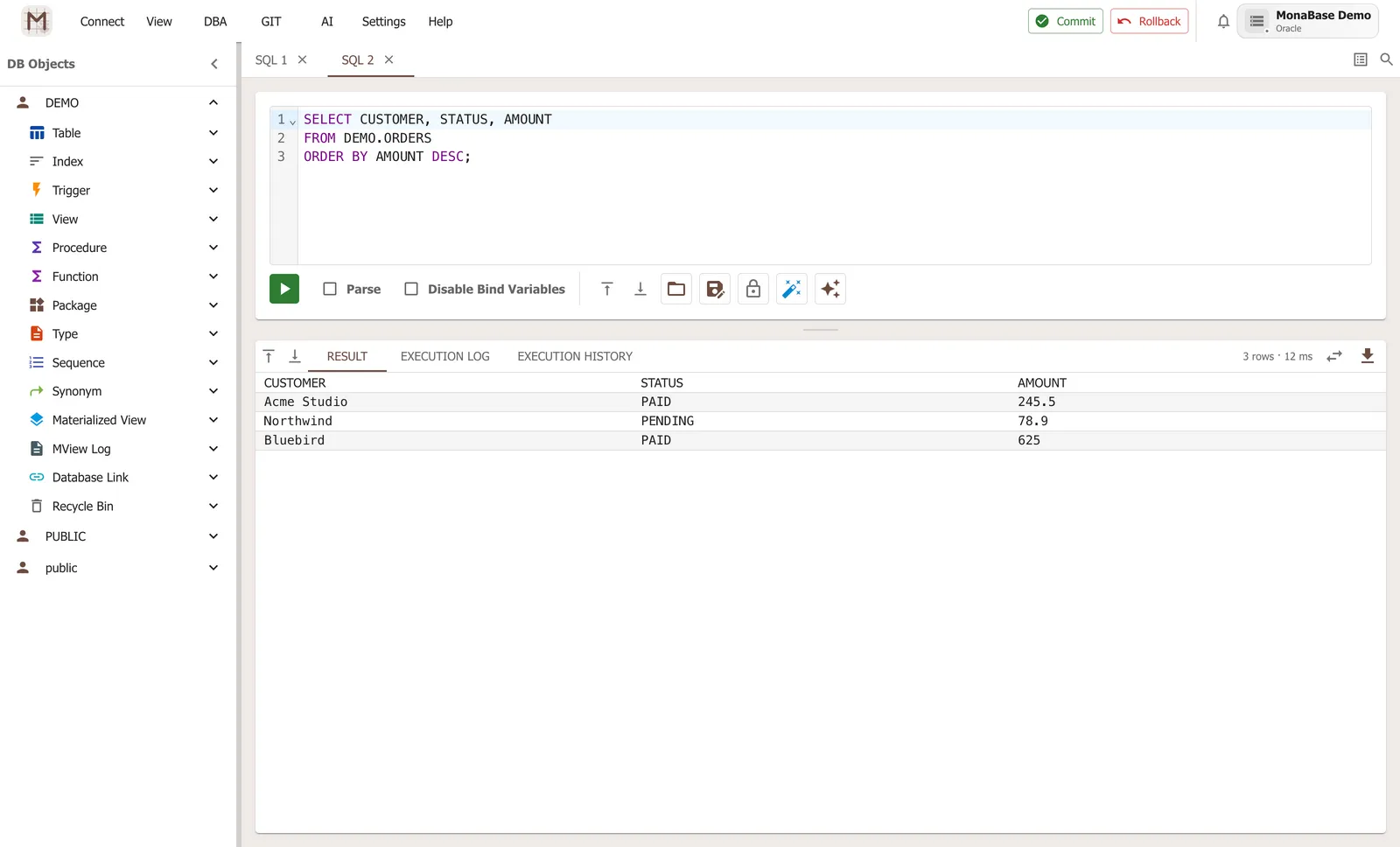
Editor and execution controls
Section titled “Editor and execution controls”Hover over icon-only controls to see their tooltips. At narrow widths, secondary actions move into More actions (…). Editing, formatting and file operations do not execute SQL.
| Feature | How to use it | Result / points to check |
|---|---|---|
| Execute / F5 | Type SQL, then click the green play icon or press F5 while the SQL window is active. | Runs the selected text if there is a selection; otherwise runs the editor text. With Parse checked, the same action obtains execution plans instead. |
| Run selected SQL | Select one complete statement or a group of statements before Execute. Clear the selection to run the whole editor. | A selection is executed as written, so include the complete statement. A caret position alone does not mean “run only the statement under the caret.” |
| Multiple-statement scripts | Separate ordinary statements with semicolons. For Oracle PL/SQL blocks, use a slash on its own line after the block. | Statements run in order and stop at the first error or cancellation. The grid keeps the latest successful result that returns columns; per-statement details are in Execution log. There are no Result 1/Result 2 tabs. |
| Format SQL | Click the magic-wand formatting icon below the editor. | Formats the entire editor using the Oracle, PostgreSQL or MySQL dialect, arranging line breaks/indentation and uppercasing keywords. Formatting does not execute SQL. |
| Bind variables | Write placeholders such as :customer_id and :min_amount without quotes. Open the Bind variables panel, choose each type and enter its value. | Detected variables are listed automatically. Values travel separately from SQL; change them to reuse the same query. At narrow widths, the panel opens as a drawer. See the type table below. |
| Disable Bind Variables | Check this only when you want the SQL sent without MonaBase’s :name bind processing. | Hides the input panel and sends the SQL as written. It does not insert the entered values or turn placeholders into string literals; unresolved placeholders may be rejected by the database. |
| Open SQL file | Click the folder icon and select a UTF-8 .sql file. | Loads its text into the editor without executing it. The configured SQL file capacity limit applies. |
| Save As | Click the Save As icon and select the destination for the .sql file. | Saves SQL text as UTF-8. It does not save results or commit database changes. This window has no draft restoration or separate overwrite-save command. |
| Editor/result layout | Use the up/down pane icons to maximize the editor or results, then restore split view. Drag the divider to resize it; double-click to balance it. | Only changes the visible workspace area. SQL text and results remain available when the other pane is hidden. |
| Private execution | Enable the lock icon before executing a query you do not want recorded in app history. | Suppresses new SQL history and hides SQL/detail errors in this window’s log while still showing results. Its plan context is not offered for tuning. This does not hide database-side logs or prevent explicit file saves or AI requests. |
| Execution schema (PostgreSQL) | Choose the execution schema in the PostgreSQL SQL toolbar before running the query. | Provides the schema context for unqualified object names and plan analysis. The selected schema is required in the PostgreSQL window. Schema-qualified SQL still identifies its explicit objects. |
| Ask AI to create or modify SQL | Use the AI button below the editor, select any reference objects and describe the query you need in the sidebar. | Requires configured AI support. This is SQL creation/modification; the separate AI button on an execution-plan result prepares a tuning request. Review generated SQL before running it. |
Result grid, logs and history
Section titled “Result grid, logs and history”These controls work on the results already fetched into the SQL window. Exporting or transposing does not rerun the query.
| Feature | How to use it | Result / points to check |
|---|---|---|
| Result summary | Read the row count and elapsed time beside the result actions; hover to see completion time. | Shows the fetched result count and reported execution time. DML affected-row counts and statement errors are recorded in the log. |
| Transpose rows and columns | Click the horizontal swap-arrows icon on a normal result. Click it again to restore the original grid. | Displays column names vertically and records horizontally. Useful for comparing a few wide records; it changes presentation, not SQL or stored data. It is not a SQL PIVOT or the Cross-tab feature. |
| Copy / export result | Open the download action and choose clipboard, CSV or Excel. Choose headers, encoding and spreadsheet-safe text as appropriate. | Exports the currently held result (or its transposed display), not extra rows from the database. In plan mode it exports the raw plan output rather than the AI tuning package. |
| Inspect / copy a cell | Open a result cell’s context menu to inspect or copy its value. | Helps read long values that are clipped in the grid. This is a viewer, not an UPDATE operation. |
| Execution log | Open Execution log, search the text or enable Errors and stopped executions only. Click an error line when navigation is available. | Shows each statement, duration, affected/fetched counts and failures. Clear log clears the displayed log; it does not roll back a transaction. |
| Execution history | Search history and double-click a row to open its SQL in a new tab. | Restores text without executing it. Saving history depends on Settings, private execution and credential-SQL filtering; clearing history is separate from clearing the log. |
Bind variable types and a practical example
Section titled “Bind variable types and a practical example”In the example SQL at the end of this guide, set CUSTOMER_ID to Number / 101 and MIN_AMOUNT to Number / 200. Variable names are listed in uppercase, and repeated names share one input. Do not put quotes around :customer_id.
| Feature | How to use it | Result / points to check |
|---|---|---|
| String | Choose String and enter the value directly, for example PAID or O’Reilly. | Do not add SQL quote characters around the input. The driver receives it as a separate value, including embedded quotes. |
| Number | Choose Number and enter a finite numeric value, such as 101 or 200.50. | Validates the number before execution and converts it to the database numeric type. Invalid numeric input prevents the script from starting. |
| Date | Choose Date and use the date input according to Settings → View → Date input format. | Validates the date and passes a typed date/timestamp value. An invalid date prevents execution; changing the display date format alone does not set the input format. |
| Blank input → NULL | Leave the value empty when you want SQL NULL. | Empty/unspecified values are bound as NULL, not the string “NULL”. SQL comparisons with NULL need IS NULL; column = :value with an empty value does not mean IS NULL. |
Execution plans: the starting point for tuning
Section titled “Execution plans: the starting point for tuning”Check Parse (解析), select one query, then Execute/F5. This requests an estimated plan: Oracle uses EXPLAIN PLAN and DBMS_XPLAN; PostgreSQL uses EXPLAIN (VERBOSE, FORMAT JSON), without ANALYZE. It does not measure the query’s actual row counts or runtime.
| Feature | How to use it | Result / points to check |
|---|---|---|
| Plan tree | Expand/collapse nodes and follow scans, joins and sorts. | Oracle text and PostgreSQL JSON plans are presented as a hierarchy. A highlighted full/sequence scan is a point to investigate, not proof that an index is always better. |
| Estimated rows and cost | Compare row estimates and operation costs before and after a proposed change under similar conditions. | Cost is the database optimizer’s estimate, not milliseconds. Plan values and available columns differ between databases; measure real query time separately. |
| Predicates / filter conditions | Read the conditions shown below the tree, including filters and index/join conditions where available. | Helps identify where filtering occurs and whether a condition is used for index access or applied later. The information depends on the returned plan. |
| Open a referenced table | Click an underlined table name with a resolved schema/object identity. | Opens the table’s structure tab to inspect columns and definitions. Index names, aliases and unresolved nodes do not automatically become table links. |
| Analyzed SQL and plan stay together | After changing SQL or the PostgreSQL execution schema, analyze it again before preparing a new tuning request. | The tuning package uses the SQL/schema snapshot associated with the displayed plan, not later editor edits. A private execution has no shareable tuning snapshot. |
Two ways to ask AI for tuning
Section titled “Two ways to ask AI for tuning”Both routes start with the AI button on the execution-plan result, not the editor’s SQL-creation button. The app gathers the tuning context first.
| Feature | How to use it | Result / points to check |
|---|---|---|
| Configured in-app AI | Enable/configure the provider in AI Settings, analyze the query, then click Ask AI for SQL tuning on the plan result. | Opens the sidebar with a prepared request. Add your workload details, optionally preview what will be sent, then click Send. The AI does not receive direct database access. |
| AI not configured / disabled | Analyze the query and use the same tuning button. Save the offered UTF-8 text file (default: tuning_info.txt). | Open the file and paste its contents into an AI chat, or attach it if that chat supports files. No in-app API setup is required. Generating the file alone does not send it to an AI service. |
What the AI tuning package contains
Section titled “What the AI tuning package contains”The request includes instructions to identify bottlenecks and propose SQL rewrites and CREATE INDEX statements in the app language. Table metadata is collected for tables identified from the plan; it is not a dump of the entire database.
| Feature | How to use it | Result / points to check |
|---|---|---|
| Database environment | Database display information and the analyzed schema when available. | Gives AI the current Oracle/PostgreSQL/MySQL context. Check connection labels and identifying information before sharing externally. |
| Target SQL and execution plan | The analyzed SQL and its raw Oracle text plan or PostgreSQL/MySQL JSON plan. | Keeps the query and plan consistent. Supplement representative bind values and workload details yourself where appropriate; they are not a complete automatic benchmark. |
| Table definitions | DDL for related tables that can be resolved from the plan. | Lets the AI inspect column types and constraints. Metadata retrieval may require privileges; a retrieval failure is reported rather than silently treated as complete information. |
| Table and column statistics | Oracle: row/block counts, distinct/null counts and density. PostgreSQL: estimated rows/pages, null fraction, distinct values and correlation, where available. | Provides optimizer context. Statistics can be missing or stale; these are not the actual rows read by this execution. |
| Existing indexes | Index definitions and, for Oracle, available index statistics. | Helps the AI avoid redundant indexes and explain access paths. Creating a suggested index remains a separate explicit database operation. |
In-app tuning: from plan to a reviewed proposal
Section titled “In-app tuning: from plan to a reviewed proposal”- Select the query, fill any binds and choose the PostgreSQL schema if applicable. Enable Parse and execute.
- Read the plan, then click the tuning AI button in the result toolbar.
- Review the prepared request in the sidebar. Add what is slow, representative input values, expected row counts, database version and constraints such as “do not change the returned rows.”
- Use Preview request if you want to inspect the text before sending, then click Send.
- Read the explanation and copy a candidate query into a separate SQL window for comparison. Tuning answers do not execute SQL or automatically create indexes.
Tuning with an external AI chat and tuning_info.txt
Section titled “Tuning with an external AI chat and tuning_info.txt”- With in-app AI disabled or not configured, obtain a plan and click the same tuning button.
- Save tuning_info.txt, open it and review the SQL, object names, database display details and statistics before sharing. Remove information you do not want to disclose while keeping the context needed for analysis.
- Paste the complete text into the AI chat you use, or attach the file if supported. The file already includes a tuning request; add performance goals and representative conditions.
- Ask for the bottleneck reasoning, a result-preserving rewrite and justified index proposals, including trade-offs.
- Bring the suggested SQL back to MonaBase and analyze/test it yourself. The chat does not connect to your database through this file.
A useful tuning request
Section titled “A useful tuning request”Example: “This order lookup is slow for customers with many orders. Keep exactly the same rows, NULL behavior and ordering. Explain which plan nodes may be expensive. Propose a rewrite and only justified indexes; state assumptions, write/storage costs and how to compare before and after.” Add actual timings and input conditions that you have measured rather than treating plan cost as runtime.
Validate the improvement
Section titled “Validate the improvement”Keep the original SQL. Use the same bind values and data conditions, compare plans and measure normal execution separately. Check row counts, actual values, duplicates, NULL behavior and ordering; repeat measurements when cache and load can affect timing. Indexes can improve reads while adding storage and write costs. Apply schema changes only after reviewing those effects. Stopping a script or seeing an error does not undo earlier successful statements; inspect transaction state before retrying.
Try named binds
Section titled “Try named binds”The example at the end assumes an orders table with order_id, customer_id and amount in your own schema. Set CUSTOMER_ID = Number / 101 and MIN_AMOUNT = Number / 200. Change the values and rerun; enable Parse to inspect the plan for the same query.
How to use this screen
Section titled “How to use this screen”- Open a SQL window, choose the schema, and type SQL or use Open. Select the statement or script you intend to run.
- Set bind values when required and execute. Inspect the returned rows, affected-row counts and log; review errors before retrying a script.
- Use Parse or the execution-plan controls when appropriate. Commit or roll back pending data changes explicitly, and use Save As only to keep the SQL text.
SELECT order_id, customer_id, amountFROM ordersWHERE customer_id = :customer_id AND amount >= :min_amountORDER BY order_id;Database-specific behavior
Section titled “Database-specific behavior”Oracle
Section titled “Oracle”Oracle DDL such as CREATE TABLE can implicitly commit earlier work. A later rollback cannot undo changes already committed by DDL.
PostgreSQL
Section titled “PostgreSQL”MonaBase aligns its PostgreSQL DDL transaction policy with the Oracle workflow. A failed ordinary statement uses a savepoint to preserve earlier pending changes instead of automatically replaying the SQL.
MySQL uses its own SQL dialect and keeps the connection database as the SQL tab default; there is no schema selector. Use qualified names for other databases. Scripts execute one statement at a time and stop on errors or cancellation. Big integers/decimals retain precision, and date display uses outputDateFormat. Results exceeding 10,000 rows or 16 MiB are rejected rather than silently truncated.