
Tables
The table window has six tabs: Data, Structure, Relation, ER diagram, Statistics and Source. Use Data for records, the middle tabs to understand definitions and relationships, and Source to review DDL and Git history. The tables below explain what each control changes.
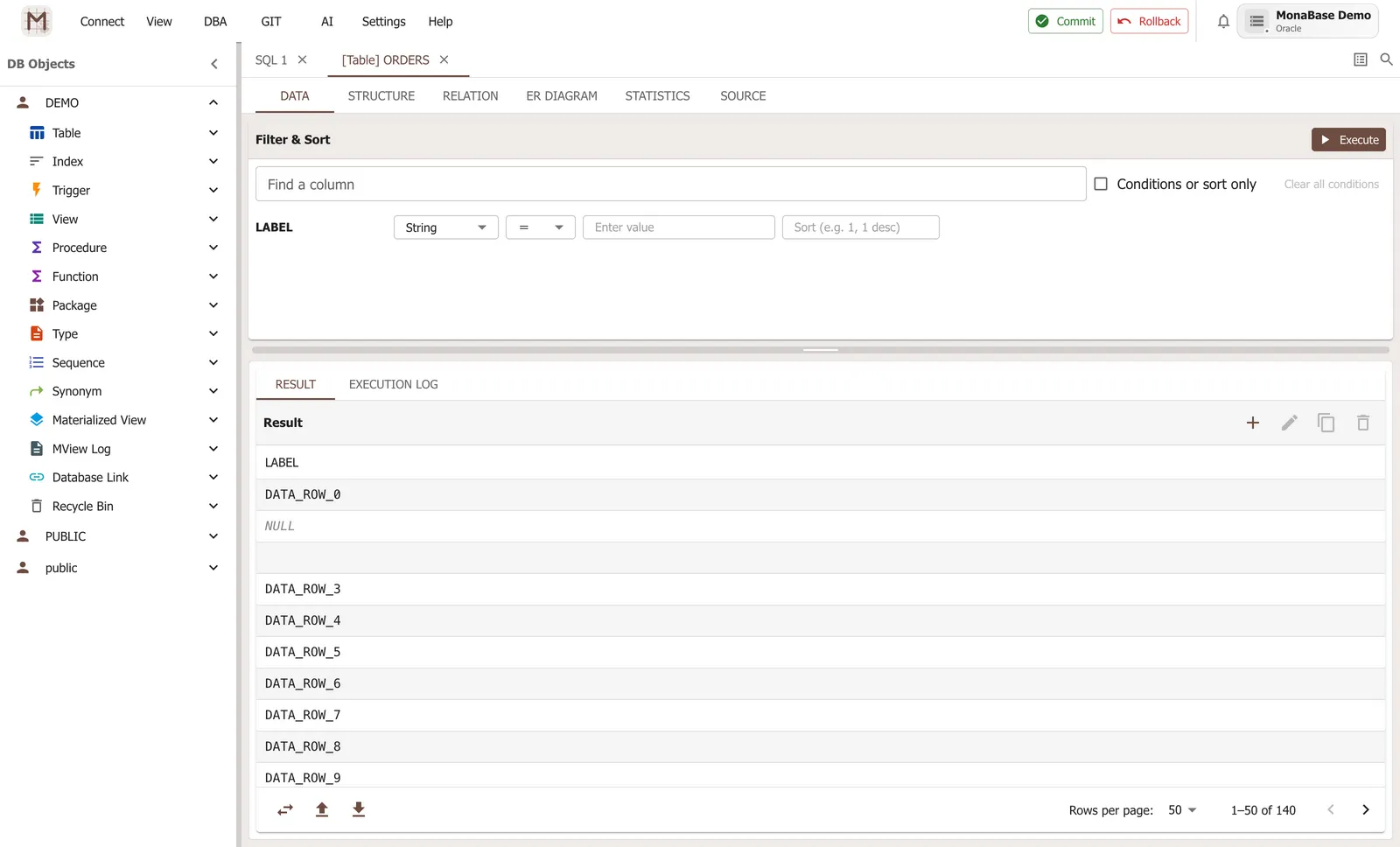
Data tab — filtering, sorting and paging
Section titled “Data tab — filtering, sorting and paging”Open a table from the sidebar. Edit conditions above the results, then execute. Editing a condition alone does not fetch new rows; paging and export continue to use the last successfully applied conditions.
| Button / setting | How to use it | What changes |
|---|---|---|
| Execute | Set conditions and click Execute. | Recounts matching rows and fetches the first result page with the chosen filters and sorting. |
| Find a column / active conditions only | Search by part of a column name, or show only columns with a condition or sort value. | Only the condition editor is filtered. Hidden conditions remain in effect; a message reports hidden active columns. |
| Value type | Choose String, Number or Date for the condition; PostgreSQL time columns also support Time only. | Controls conversion and validation of the search value. Excluded types cannot be used for filtering or sorting. |
| Operator and value | Choose equality, inequality, less-than-or-equal, greater-than-or-equal or LIKE. Enter a literal value; leave it empty for no value condition. | Conditions on different columns are combined with AND. LIKE searches for a literal substring, escaping % and _ rather than treating them as user wildcards. |
| Date input | Use the configured input date format or the date picker. | The value is converted for a date comparison; the input type does not change the database column definition. |
| Sort priority and direction | Enter 1, 2, or 1 DESC in column sort fields. ASC and DESC alone are also accepted. | Smaller priorities sort first; ASC is ascending and DESC descending. This supports multiple sort columns. |
| Click a result column header | Click a searchable column header in normal view. | Immediately searches from page one, alternating ascending/descending for that column and clearing other column sorts. |
| Clear all conditions | Clear the condition draft, then click Execute to apply it. | Resets entered filter/sort values; existing results remain until the next execution. |
| Page / rows per page | Choose 50, 100 or 500 rows and use the paging controls below the grid. | Fetches the requested page from the DB using applied conditions. It does not load the whole table into the result grid. |
Data tab — record editing and result tools
Section titled “Data tab — record editing and result tools”Record commands operate on the selected normal-view rows. Data changes use the main connection; inspect the result and transaction state before committing or rolling back from the app menu.
| Button / setting | How to use it | What changes |
|---|---|---|
| Select rows | Click a row; use Ctrl for individual additions, and Shift for a range. | Enables single-row edit/duplicate or deletion of one or more selected rows. |
| Add / edit / duplicate | Use the plus, pencil or duplicate icon. Shortcuts: Ctrl+I, Enter / Ctrl+E and Ctrl+D. | Opens a record dialog. Duplicate preloads the source row; review unique/key values before executing an insert. Primary-key values are disabled when editing. |
| Blank / explicit NULL / text null | Use Set NULL for a nullable field. Typing null into a text field means the literal string. | Blank input uses a default on insert and NULL on update. Explicit NULL differs from an omitted default, and NOT NULL columns remain subject to validation. |
| Date, long text and binary fields | Use the appropriate dialog field, calendar or file selector for the column type. | Existing timestamps keep their original precision and stored offset. Long/binary/special types may require the dialog instead of direct cell editing. |
| Delete selected rows | Select rows and use the trash icon or Del / Backspace, then review the confirmation. | Deletes the selected records, not the table definition. Check affected rows before committing. |
| Cell menu / transpose | Right-click a cell or use Shift+F10 to inspect/copy it; use the transpose icon below the grid to swap axes. | Cell inspection helps read long values. Transpose shows the loaded page by field; edit/duplicate/delete and normal paging are disabled until you switch back. |
| Execution log / panel divider | Open Execution log to read SQL/results or clear the log with the trash icon; drag the divider to resize the condition area. | Changes only the screen layout or visible log; clearing the log does not roll back database changes. |
Data tab — import and export settings
Section titled “Data tab — import and export settings”Open the import/export icons below the result grid. Preview an import before executing it; for export, distinguish normal paging from transposed presentation.
| Button / setting | How to use it | What changes |
|---|---|---|
| Import source / encoding / delimiter | Choose clipboard or CSV file. Clipboard supports tab/comma delimiters; files support UTF-8 or Shift-JIS. | Controls how input text is read and split into columns; changing an option invalidates the previous preview. |
| Header and preview | Specify whether the first row is a header and click Preview. Review destination columns, skipped columns and sample records. | Header mode maps column names; without a header, input follows the destination column order. Execute becomes available after a valid preview. |
| Execute import | Click Execute after checking the current preview. Review inserted counts and any error. | Inserts rows in batches. Earlier batches may remain pending if a later batch fails; inspect before rollback, commit or retry. |
| Export format and destination | Choose Clipboard, CSV or Excel; choose a full destination path for file output. | Copies tab-separated text or creates the selected file format. Export reads data without changing table records. |
| Export scope | Use normal view to export matching table rows; use transpose only when you want the displayed transposed result. | Normal export fetches all matching pages with the applied filters/sort, not only the visible page. Transposed export uses the loaded transformed rows. |
| Header / CSV encoding / spreadsheet safety | Toggle the header, choose UTF-8 or Shift-JIS for CSV, and choose whether to protect formula-like text. | Changes file presentation and text handling. Spreadsheet protection may add a leading apostrophe; disable it only when you need raw values and understand the destination. |
| Progress / Stop | Watch the fetch/prepare/save status; Stop is available while fetching export data. | Stops further export fetching; it does not undo database edits. Preparation/saving have different availability from the fetch phase. |
Structure tab — columns and related definitions
Section titled “Structure tab — columns and related definitions”Read the column grid and the expandable index, check-constraint and trigger lists. These actions can issue DDL; they are not just display settings.
| Button / setting | How to use it | What changes |
|---|---|---|
| Column definition grid / Copy | Read names, types, length/precision, key positions, NULL allowance, defaults and comments; use Copy for TSV. | Copies the visible definition metadata for review or a spreadsheet without changing the DB. |
| Table comment | Click the comment edit icon, change the text and execute the change. | Updates the database table comment; it is not a private screen memo. |
| Refresh structure | Use the refresh icon after an external definition change. | Reloads structural metadata. It does not insert records or gather optimizer statistics. |
| Add / alter a column | Use Add column or the row pencil. Set name, type, supported length/precision/scale and NULL allowance. | Executes ADD/ALTER operations. Type narrowing or NOT NULL can fail against existing data; accepted combinations depend on the DB and column type. |
| Default value / column comment | Use manual input or the type-dependent selector for available defaults, and enter a column comment. | Changes the DB column default and comment. Oracle offers sequence NEXTVAL/date defaults; PostgreSQL uses its own type-dependent choices. A default is not a bulk update of old rows. |
| Delete column / drop table | Use the row trash icon or Drop table and read the confirmation carefully. | Removes actual DB objects and data. Table deletion uses Oracle CASCADE CONSTRAINTS or PostgreSQL CASCADE and may affect dependencies. |
| Indexes / check constraints / triggers | Expand a list, use Add for a new definition, or double-click a row to open its editor. | Keeps the table context while opening the corresponding object window; execution there applies the definition change. |
| Related-object context menu | Right-click a row for the available enable/disable, visibility or delete actions. | Oracle exposes index visibility and constraint/trigger state operations. PostgreSQL exposes trigger state changes; available actions differ by object and DB. |
Relation tab — foreign keys
Section titled “Relation tab — foreign keys”This list describes foreign keys from the current table to its referenced tables. Use the ER tab to see surrounding relationships graphically.
| Button / setting | How to use it | What changes |
|---|---|---|
| Foreign-key list | Read the constraint name, own columns, referenced table/columns and ON DELETE rule. | Lets you inspect reference direction and multi-column mappings without changing data. |
| Add relation / constraint name | Open Add relation and enter a name, or leave it blank for automatic naming. | Prepares a foreign-key definition for the current table. The DB is changed only when you execute the addition. |
| Own columns / referenced table and columns | Select one or more own columns, a referenced table, and corresponding referenced columns. | Builds the foreign-key column pairing. Check equal column counts, ordering and compatible types; the DB also checks referenced keys and existing data. |
| Delete rule | Choose NO ACTION, CASCADE or SET NULL. | NO ACTION prevents invalid parent deletion; CASCADE deletes matching child rows; SET NULL clears the child reference and requires nullable child columns. |
| Execute add / drop foreign key | Execute the prepared definition, or use the row trash icon and confirm removal. | Adds or drops the actual foreign-key constraint. Dropping the constraint does not itself delete its table records. |
ER diagram tab — understand the surrounding tables
Section titled “ER diagram tab — understand the surrounding tables”The embedded diagram is generated from database metadata around this table. Its display controls do not create or alter foreign keys.
| Button / setting | How to use it | What changes |
|---|---|---|
| Automatic relationship diagram | Open the ER diagram tab to inspect connected table nodes and links. | Shows existing relationships around the current table. An empty diagram can mean no relationships to display, rather than a failed query. |
| Draw comments | Toggle the comment checkbox. | Shows/hides database comments in diagram labels; it does not edit the stored comments. |
| Show logical names | Enable comments, then toggle logical-name display. | Uses comment-based names in the diagram instead of the usual physical-name presentation. |
| Draw data types / zoom and pan | Toggle types, or use diagram navigation controls and drag the canvas. | Changes detail and viewing position so wide structures are easier to read; the DB definition stays the same. |
| Save PNG | Use the diagram image-save icon. | Exports the current diagram as an image. Editable, Git-managed custom ER designs are handled by the separate Custom ER diagram window. |
Statistics tab — table and column statistics
Section titled “Statistics tab — table and column statistics”The upper grid contains table-level values and the lower grid contains per-column values. These are DB-maintained statistics, not a fresh COUNT of your current filtered results.
| Button / setting | How to use it | What changes |
|---|---|---|
| Oracle table / column statistics | Read NUM_ROWS, blocks, average row length and LAST_ANALYZED; inspect distinct/NULL counts, density, buckets and sample size per column. | Helps assess the optimizer information currently available. Missing/stale statistics may not match live data; this tab does not run DBMS_STATS. |
| PostgreSQL table / column statistics | Read scan/change counters and vacuum/analyze dates from pg_stat_all_tables, plus NULL fraction, average width and n_distinct from pg_stats. | Shows activity counters and statistical estimates. Negative n_distinct expresses a distinct-value ratio; this view does not execute ANALYZE or VACUUM. |
| Copy table / column statistics | Use the copy icon in the header of either grid. | Copies that grid with headers as TSV for investigation or a spreadsheet. |
| Resize / retry | Drag the divider between grids. If retrieval fails, use Retry in the warning. | Allocates more room to either grid or retries the statistics read. It does not collect new DB statistics. |
Source tab — DDL and Git history
Section titled “Source tab — DDL and Git history”The Source tab uses the shared version-control view for the table definition. It tracks DDL source, not a backup of the table rows.
| Button / setting | How to use it | What changes |
|---|---|---|
| Current source / Copy / Refresh | Read the generated definition, copy it or fetch the latest definition from the DB. | Refreshes the source snapshot used for review and Git recording. Fetching alone does not execute the DDL. |
| Record current source | Set up the local Git repository from the app menu, then record the source with an optional commit message. | Creates a local Git version of the fetched table definition. Recording does not publish it to GitHub automatically. |
| Version history / compare revisions | Select a history entry to view its difference from the current source, or choose two revisions to compare. | Shows which definitions changed. Diff viewing does not change the database or table records. |
| Schema changes | Open the schema-change review after configuring Git. | Reviews source changes across objects in the schema, rather than just this table. |
| Open recovery SQL | Select a saved history entry and open its recovery SQL. | Opens SQL for your review; it is not an automatic migration or data restore. Table CREATE statements may require a manually planned ALTER or other recovery procedure. |
Example: review a small set of orders
Section titled “Example: review a small set of orders”On the Data tab, set STATUS to a string equality value such as READY, set AMOUNT to a numeric greater-than-or-equal value such as 200, and enter 1 DESC in the ORDER_DATE sort field. Click Execute. These conditions are combined with AND. Inspect the records, then export in normal view if you need every matching page. Before changing a column or foreign key, inspect Structure, Relation and the ER diagram; after a definition change, fetch Source again to review and record the new DDL.
Data changes, definition changes and read-only connections
Section titled “Data changes, definition changes and read-only connections”Searches and display toggles read or present data; record edits and imports modify data; structural and foreign-key actions modify definitions. Check the connected environment and affected rows before committing or rolling back. Oracle DDL can implicitly commit earlier data changes, so a later rollback cannot undo every structural operation. Use the app read-only mode and database privileges when only inspecting production. Availability also depends on database privileges and supported types; a failed read is not an empty table.
How to use this screen
Section titled “How to use this screen”- Open a table and use the Data tab to apply filters and sorting. Change the page size or move between pages for large results.
- Review a record before inserting, updating or deleting it. Inspect affected-row counts and commit or roll back as appropriate.
- Inspect Structure, Relation, ER diagram and Statistics before a definition change. Refresh Source after changing a definition, then review or record its DDL in Git.
Database-specific behavior
Section titled “Database-specific behavior”Oracle
Section titled “Oracle”Oracle data inspection preserves column and primary-key identity using schema-qualified metadata. Structural DDL follows Oracle implicit-commit rules.
PostgreSQL
Section titled “PostgreSQL”PostgreSQL row identity and exact numeric values are handled separately from display formatting. Do not assume every result row is editable.
MySQL table editing and data generation target InnoDB base tables. The default database and an object’s actual database remain distinct when another database is opened from the sidebar. DDL is reviewed and can implicitly commit; background structure/statistics reads do not commit main-session edits.