
App styles
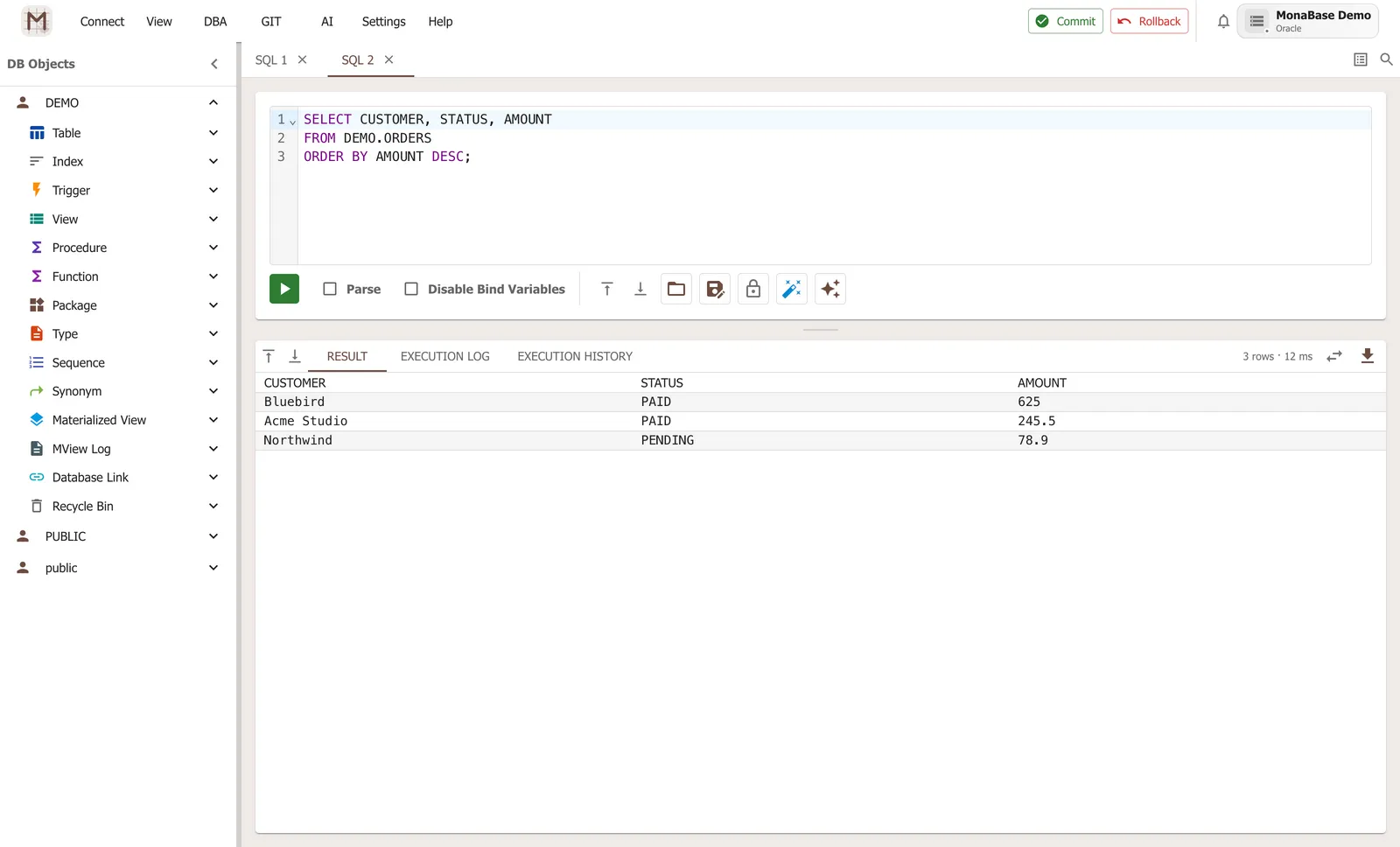
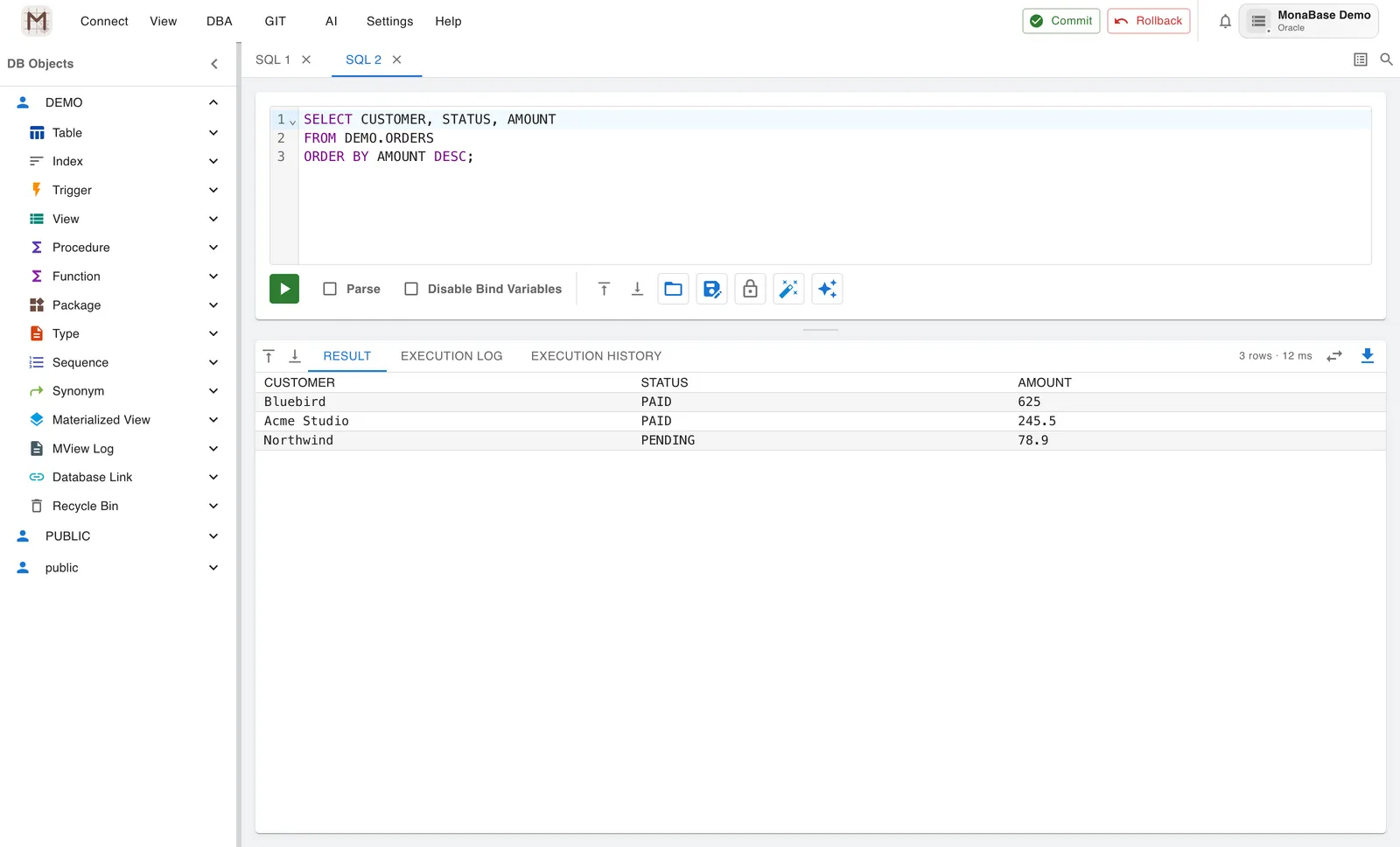
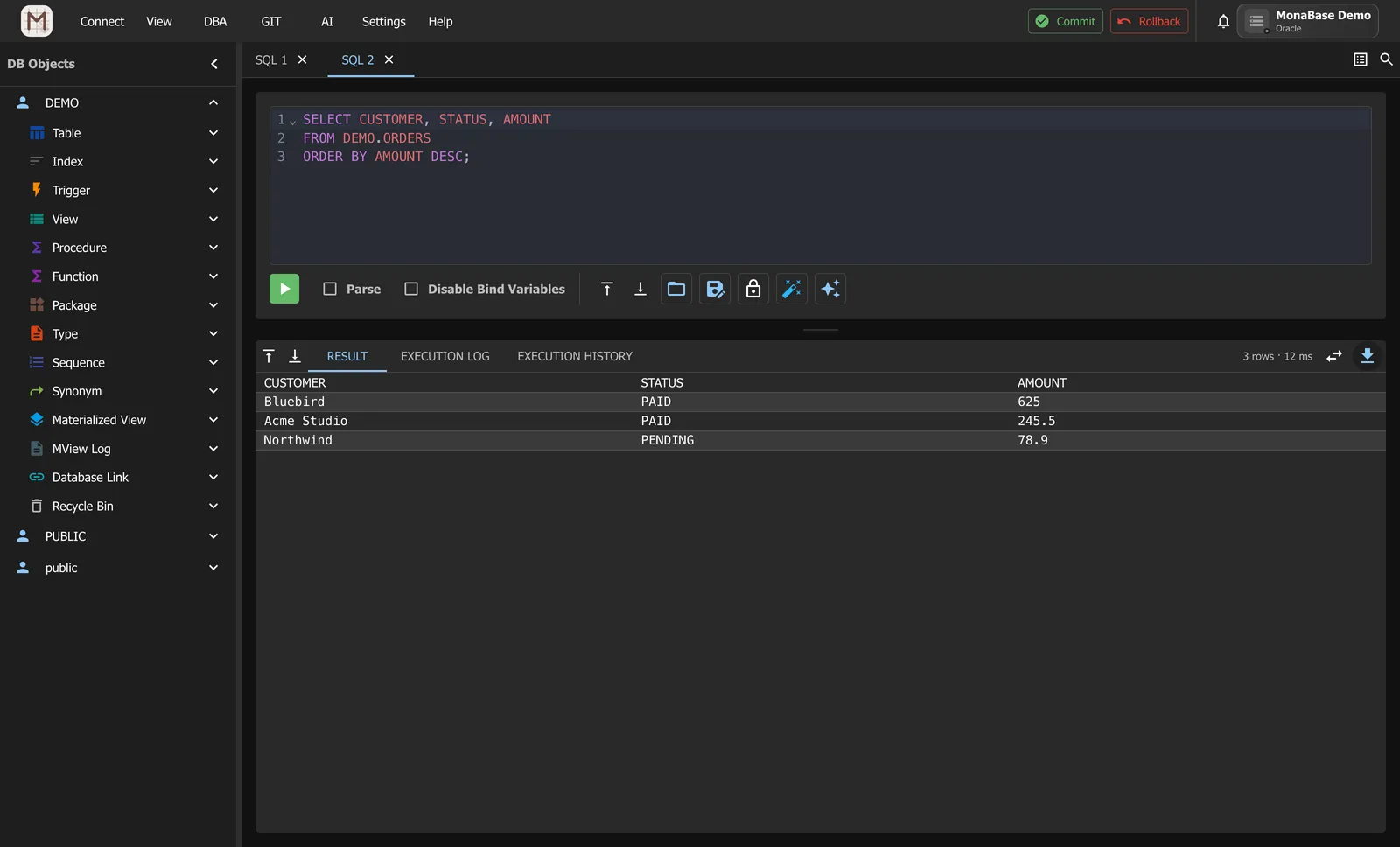
MonaBase offers three app styles for Oracle, PostgreSQL and MySQL. Compare the same SQL workspace below: Mona is shown first, followed by Simple and Dark. Only the visual presentation changes, so choose the palette that suits your workspace and preferences.
Mona: warm brown accents
Section titled “Mona: warm brown accents”The first screenshot shows Mona, the default style. Brown accents highlight active tabs and controls against pale mocha backgrounds and white panels. It provides MonaBase’s distinctive warm appearance while keeping the SQL editor and results clearly separated. There is also a small playful detail: the Stop button in the full-screen loading indicator and breakpoints in the trace-debugging view use paw-print icons in Mona style.
Simple: blue accents and light panels
Section titled “Simple: blue accents and light panels”Simple uses blue accents, white panels and a light gray workspace. Choose it if you prefer the familiar appearance of a conventional business application. The screenshot uses the same query and sample rows as Mona, so you can compare the colors without changing the task.
Dark: dark backgrounds and light text
Section titled “Dark: dark backgrounds and light text”Dark uses dark gray backgrounds, light text and brighter blue accents. It also adapts the SQL editor and result grid to a dark palette. This may suit a dim workspace or a personal preference for dark interfaces; use the screenshots to judge readability on your own display.
What changes and what stays the same
Section titled “What changes and what stays the same”The chosen style applies across the app, including the connection screen, sidebar, tabs, editors, result grids and dialogs. It is stored in the app settings and is used again at the next launch. Your SQL text, query results, database definitions, permissions and transaction controls are unaffected. All three styles provide the same features on Oracle and PostgreSQL.
App style and website theme
Section titled “App style and website theme”The theme selector on this website changes only the documentation website. It does not change the desktop app. Use the app’s Settings → View → App Theme (Design) to choose Mona, Simple or Dark. App styles are selected explicitly; there is no automatic system-theme option in this selector.
How to use this screen
Section titled “How to use this screen”- In the desktop app, open Settings in the top menu, then choose Settings. You can also open Settings from the connection screen before connecting.
- Open the View tab and find App Theme (Design). Choose Mona Style, Simple Style or Dark Style.
- Click Save to apply and remember your choice. Selecting an option alone does not save it; Cancel closes the dialog without applying the selection.
- Return to the workspace and check the sidebar, SQL editor, results and dialogs. Open the same setting again whenever you want to switch back.