
Settings
Settings control the local application experience. Language and theme change presentation; timeouts, file limits and AI limits constrain operations. Configure these deliberately for your workload.
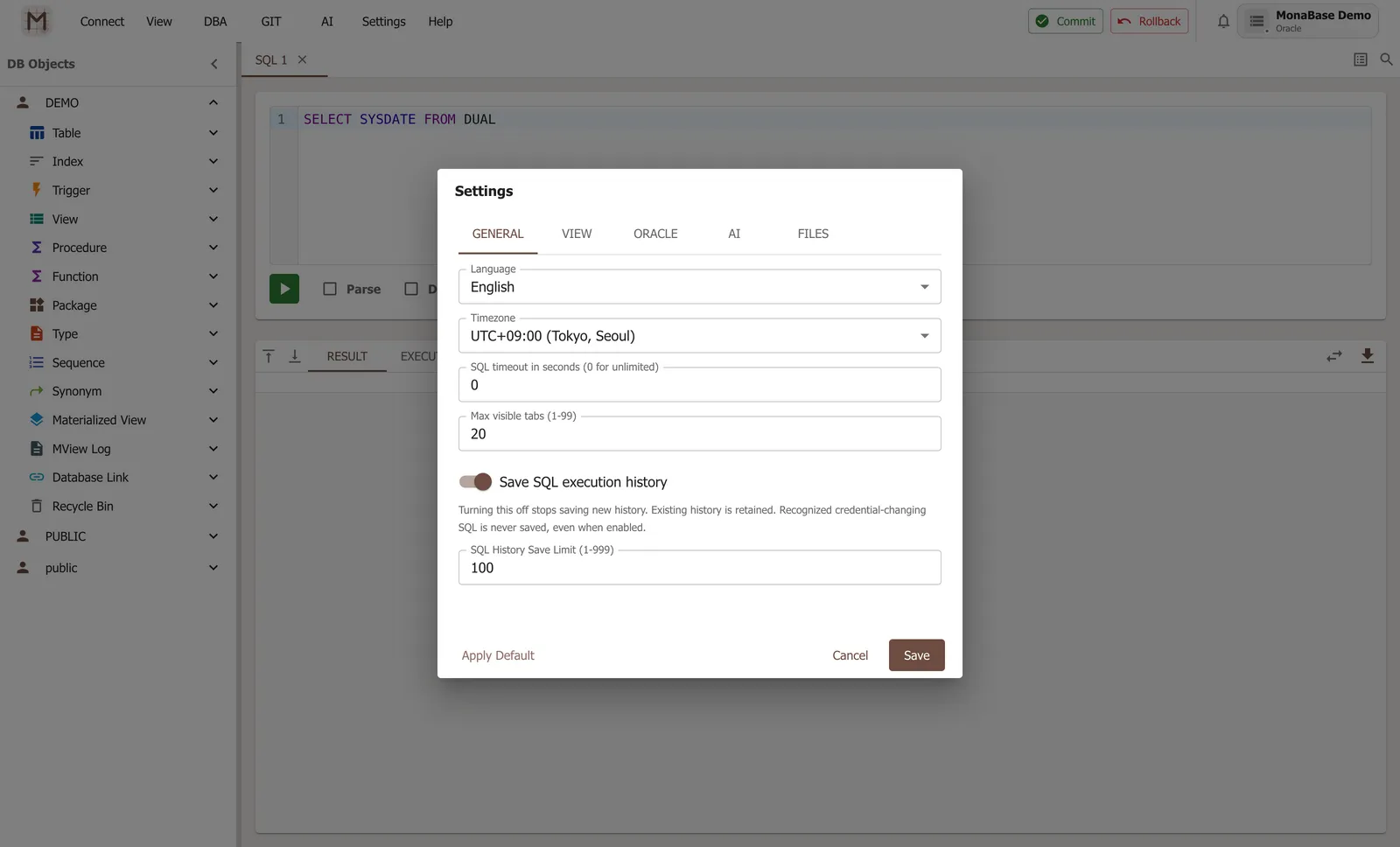
General
Section titled “General”Language, date handling, query limits and SQL history. The timezone selector uses fixed UTC offsets, not city-based daylight-saving rules.
| Setting | Available values / range | What changes |
|---|---|---|
| Language | English / Japanese | Changes the desktop app’s menus, labels and messages. It does not change SQL identifiers or the website language. |
| Timezone | UTC−12:00 to UTC+12:00; includes +05:30 and +09:30 | Chooses the UTC offset used for supported date/time handling. Oracle also sets the session time zone when connecting; reconnect after changing it. This does not rewrite PostgreSQL server timezone settings. |
| SQL timeout (seconds) | Whole number ≥ 0; 0 means unlimited (default) | Sets the main connection query timeout for the next connection; reconnect after saving. Oracle times DB calls; PostgreSQL and MySQL apply per-query limits, not one total budget for a script. Zero means unlimited. Background/admin operations have separate limits. |
| Max visible tabs | 1–99; default 20 | Limits how many workspace tabs can be opened. At the limit, opening another tab is refused with a message; existing tabs are not automatically closed. |
| Save SQL history | On / Off | Off stops saving new history while retaining existing history. Recognized credential-changing SQL is excluded even when history is on. |
| SQL history save limit | 1–999; default 100 | Controls the maximum number of entries retained when new SQL history is saved. Older entries beyond the limit are removed during that save; changing this value alone is not a command to erase all history. |
Choose the app appearance and the date/number formats used by the relevant screens. These settings do not rewrite values stored in the database.
| Setting | Available values / range | What changes |
|---|---|---|
| App Theme (Design) | Mona / Simple / Dark | Changes the app palette, including panels, editors and result grids. All three styles have the same database features; compare their screenshots in the App styles guide. |
| Date display format | YYYY/MM/DD HH:mm:ss; YYYY-MM-DD HH:mm:ss; MM/DD/YYYY HH:mm:ss; DD/MM/YYYY HH:mm:ss; DD-MMM-YY HH:mm:ss | Changes supported date/time displays in results and related screens. For example, 2026/10/30 09:00:00 can be shown as 2026-10-30 09:00:00. It does not change the database column type. |
| Date input format | YYYY/MM/DD, YYYY-MM-DD, MM/DD/YYYY, DD/MM/YYYY or DD-MMM-YY; each with or without HH:mm:ss | Sets the expected date format for supported date fields, filters and data editing. Match typed dates to the selected format; it is separate from the display format. |
| Number format | None: 1234567; comma: 1,234,567; period: 1.234.567; space: 1 234 567 | Changes the grouping separator for aggregated values in cross-tab results. It does not change stored numeric values or every numeric display in the app. |
Oracle
Section titled “Oracle”Oracle-specific client configuration. This setting is not used for PostgreSQL connections.
| Setting | Available values / range | What changes |
|---|---|---|
| Oracle Client path | 64-bit Instant Client / Oracle Home folder; can be blank | Specifies the client libraries used for Oracle Thick mode, including OS authentication. It does not install Oracle Client. Reconnect after changing it; if Thick mode is already initialized, restart the app to change the loaded library. |
Set the assistant’s send shortcut and request limits. Capacity is measured in MiB (1 MiB = 1,048,576 bytes), not tokens. New limits apply to the next request.
| Setting | Available values / range | What changes |
|---|---|---|
| AI send shortcut | Enter sends / Shift+Enter inserts a line break; or Ctrl/Cmd+Enter sends / Enter inserts a line break | Changes keyboard submission in the AI assistant. Use Ctrl on Windows. The Send button remains available. |
| AI response capacity | 1–64 MiB; default 16 | Caps the received response body, including JSON, streaming chunks and error responses. Exceeding it stops reception and prevents adopting an incomplete answer. Raising it allows larger responses; it does not increase the model’s token limit. |
| AI idle timeout | 1–3,600 seconds; default 120 | Limits the wait for response headers or the next response data. Continuous streaming can continue within the separate total timeout. |
| AI total timeout | 1–86,400 seconds; default 600 | Limits total request time, including compatibility retries. Reaching the limit stops the request without an automatic retry after that limit. |
Limits apply when opening supported files. Raising a capacity limit does not disable file-type or regular-file checks. Values are in MiB.
| Setting | Available values / range | What changes |
|---|---|---|
| SQL file capacity | 1–64 MiB; default 16 | Rejects SQL files larger than the limit when opening them in the SQL window. Partial content is not loaded. This limits file opening, not the number of SQL result rows. |
| ER file capacity | 1–64 MiB; default 16 | Caps loading saved custom ER diagram files and their Git revisions. Increasing it allows larger diagrams while format/content checks remain in place. |
Save, cancel and restore defaults
Section titled “Save, cancel and restore defaults”Edits remain a draft until Save succeeds. Empty or out-of-range numeric values must be corrected before saving.
| Setting | Available values / range | What changes |
|---|---|---|
| Save | Apply the edited values | Writes the settings and updates the app after saving succeeds. If saving fails, correct the problem and retry; the change is not treated as successfully applied. |
| Cancel | Discard the current draft | Closes the dialog without saving the current edits. Previously saved settings remain in use. |
| Apply Default | Confirm, then review and Save | Replaces the draft values with the dialog’s defaults; Save is still required. It does not erase database data or SQL history. The draft language is kept as English or Japanese, date defaults follow it, and the reset timezone is +09:00 (the first-launch timezone is detected from the OS). |
When changes take effect
Section titled “When changes take effect”Click Save after editing. Language and style update the local app presentation; SQL timeout is captured when connecting, so reconnect to use a new value. Some screens load formatting settings when opened, so reopen the screen if its display has not changed. New AI limits apply to the next request, and file limits apply when files are opened. Settings do not change database privileges or commit or roll back a transaction.
AI provider connection settings are separate
Section titled “AI provider connection settings are separate”This dialog’s AI tab controls the send shortcut and limits. Enable AI support and configure the endpoint URL, model and API key in the separate AI Settings dialog from the AI menu. Changing a response limit does not connect a provider or send a request.
How to use this screen
Section titled “How to use this screen”- Open Settings → Settings… from the app menu, then choose the General, View, Oracle, AI or Files tab. You can also open the dialog before connecting.
- Use the tables above to choose valid values and review their effects. Save changes; reopen affected screens or reconnect where indicated.
- Use the separate AI Settings dialog for provider credentials. The AI tab here sets send shortcuts and limits only. Keep secrets out of shared screenshots.