
Connections
Connection profiles keep the database identity, connection color, and transport settings together. Use a name and color that make development and production easy to distinguish. A reachable server still needs a valid account and database privileges.
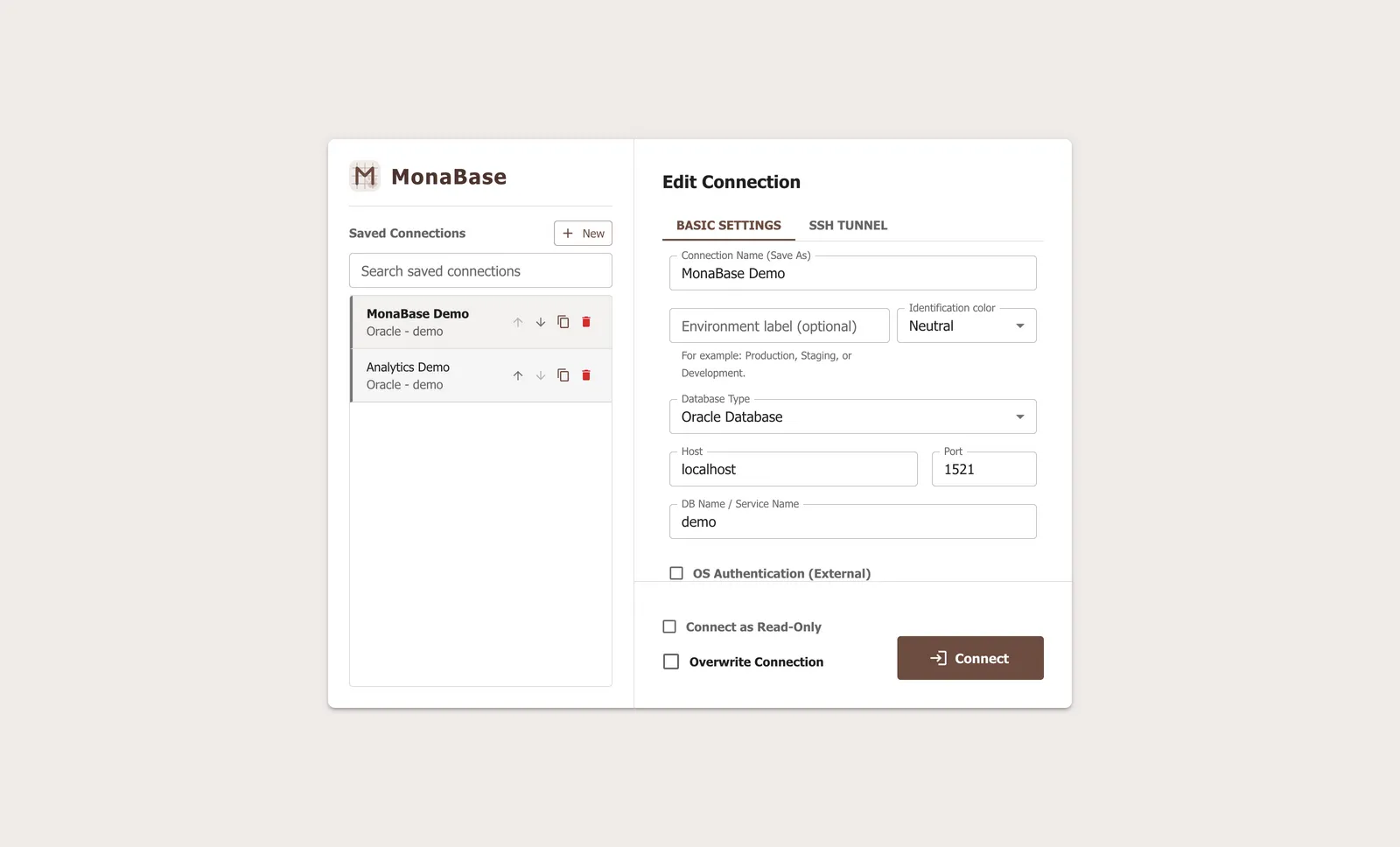
How to use this screen
Section titled “How to use this screen”- Choose Oracle, PostgreSQL or MySQL, enter the host, port, database/service, username and password, then name the profile. For MySQL, specify an existing database.
- For inspection tasks, select read-only mode. Choose the available encryption settings; for SSH, enter the jump host and verify its fingerprint against a trusted source on first connection.
- Connect and select the working schema. If authentication fails, check the account and target database rather than repeatedly changing unrelated settings.
Database-specific behavior
Section titled “Database-specific behavior”Oracle
Section titled “Oracle”Oracle connections use the configured service. OS authentication requires a supported 64-bit Oracle Client and its folder in Settings. Oracle and PostgreSQL transport options are not interchangeable.
PostgreSQL
Section titled “PostgreSQL”TLS with certificate verification requires a TLS-capable server and a trusted certificate matching its hostname. It does not silently fall back to an unencrypted connection when verification fails.
Choose MySQL, normally port 3306, and enter the target database as well as the host and account. In MySQL, database and schema identify the same namespace. Direct connections and SSH tunnels are supported; TLS verification remains a separate setting. The connected account still needs native MySQL privileges.
Saved connections: browse and manage
Section titled “Saved connections: browse and manage”Select, create, duplicate, delete, or reorder saved profiles.
| Action / setting | How to use | Effect of changing or executing |
|---|---|---|
| Select a saved connection | Choose a profile from the left list. | Loads its settings without opening a DB session. |
| Search profiles | Search by name, environment label, database, or user. | Filters the list and disables reordering while a filter is active. |
| New | Click New above the saved list. | Opens a new unsaved profile, initially set to Oracle. |
| Duplicate | Click the copy icon of a profile. | Creates an unsaved draft from it without changing the original. |
| Move up / down | Use the arrows on a saved profile. | Persists profile order; unavailable during filtering or certain busy operations. |
| Delete profile | Use Delete on a profile and confirm. | Removes the saved connection definition, not the database or account. |
Basic Settings: identity and endpoint
Section titled “Basic Settings: identity and endpoint”Set the profile identity and destination without initiating a connection.
| Action / setting | How to use | Effect of changing or executing |
|---|---|---|
| Connection name | Enter a label to identify the profile. | Used as its saved profile name. |
| Environment label and color | Enter an environment label and choose an identifying color. | Changes visual identification, not database configuration. |
| Database type | Choose Oracle, PostgreSQL or MySQL. | Selects the driver and applicable database-specific options. |
| Host and port | Enter the database destination and port. | Changes where the next connection attempts to reach. |
| Database / service name | Enter a PostgreSQL/MySQL database or an Oracle service name. | Changes the database/service targeted by the login. |
| User and password | Enter DB account credentials. | Changes the login identity and effective permissions; credential persistence depends on available OS protection. |
Basic Settings: Oracle authentication
Section titled “Basic Settings: Oracle authentication”Options visible for Oracle connections.
| Action / setting | How to use | Effect of changing or executing |
|---|---|---|
| OS authentication (external) | Enable OS authentication for an Oracle connection. | Uses external authentication and requires a supported 64-bit Oracle Client and configured folder. |
| Oracle Client folder | When prompted for OS authentication, select the installed client folder. | Saves the client location; canceling the selection cancels the login. |
| Log in as SYSDBA | Toggle Oracle SYSDBA mode. | Attempts privileged login; requires the corresponding database authorization. |
Basic Settings: PostgreSQL TLS
Section titled “Basic Settings: PostgreSQL TLS”Choose disabled TLS or certificate-verified TLS for PostgreSQL.
| Action / setting | How to use | Effect of changing or executing |
|---|---|---|
| TLS mode | Choose Disabled or Verified (verify-full). | Changes transport security; verification failure does not silently fall back to unencrypted mode. |
| CA certificate file | For verify-full, enter the CA certificate file path. | Used to verify the server certificate; invalid files can prevent login. |
| TLS server name | Specify the name to validate against the certificate. | Changes hostname verification; a mismatch causes failure. |
SSH Tunnel: gateway and authentication
Section titled “SSH Tunnel: gateway and authentication”Configure SSH port forwarding through a bastion host.
| Action / setting | How to use | Effect of changing or executing |
|---|---|---|
| Use SSH tunnel | Enable SSH port forwarding. | Establishes an SSH tunnel before connecting to the DB; off uses a direct connection. |
| SSH host and port | Enter the bastion hostname and SSH port. | Changes the SSH gateway; distinct from the database endpoint. |
| SSH user | Enter the SSH username. | Changes the SSH authentication identity; required when tunneling. |
| Password authentication | Select Password and enter the SSH password. | Authenticates to the SSH server, separately from DB credentials. |
| Private key authentication | Select Private key and provide a key file path. | Uses the key for SSH authentication; the path is required. |
| Select key file | Use the file picker beside the key path. | Populates the private-key path. |
| Key passphrase | Enter a passphrase for an encrypted private key. | Used to unlock the private key for SSH authentication. |
Connect, save and safety
Section titled “Connect, save and safety”Common controls below both tabs.
| Action / setting | How to use | Effect of changing or executing |
|---|---|---|
| Connect as read-only | Enable the read-only checkbox. | Restricts application write and stored/trace actions; not a replacement for DB permissions. |
| Save / overwrite connection | Select the save checkbox and click Connect. | Saves a new profile or overwrites the selected one before login. |
| Connect without saving | Clear the save checkbox and click Connect. | Logs in with current form values without updating saved profile data. |
| Connect button | Start login with the configured settings. | On success fetches schemas and enters the workspace; failures show an error. |
| Credential storage warning | Review any session-only credential warning. | Credentials may not persist if secure OS storage is unavailable. |
| Connection failure / retry | Correct credentials, tunnel, TLS or schema-retrieval errors before retrying. | The workspace opens only after schema retrieval; failed logins trigger cleanup. |